Keeping Score With Variables
Right now your game can't count. The cat catches the apple, the apple moves, and nobody remembers it happened. Today we give the game a memory. By the end of the period, Apple Chase keeps score, announces a winner at ten, and you'll know how to give your own game a score, lives, or a countdown clock.
Overview
A variable is a named box that holds a number your program can read and
change. In this lab you'll make one called score, start it at zero when the
game begins, add one every time the cat catches the apple, show it on the
stage, and use it to end the game. Then you'll add a variable to your own
game project, which is now a requirement. You'll follow along with me on the
projector.
Builds on: Your First Game — this lesson lands in the middle of your game project, and everything here goes straight into it.
Before you start
Sign in to Scratch, open My Stuff, and open Apple Chase (not your game project; that comes at the end).
You've got it when…
- A
scorebox on the stage starts at 0 every time the green flag is clicked and goes up by one each time the cat touches the apple. - At 10 points the apple says You win! and the game stops.
- Your own game project has at least one variable showing on the stage.
Collaboration & AI
Work: On your own, following along with the class.
AI — AIAS Level 1, No AI: Set, change, and check: three blocks you should be able to place in your sleep by the end of today. What the levels mean.
Make a Variable
-
Click Apple in the sprite list. The scoring will live in the apple's script, because the apple is the one that knows when it's been caught.
-
Click the Variables category and click the Make a Variable button.
-
Name it
score, leave For all sprites selected, and click OK.For all sprites
A variable that's for all sprites is one box the whole project shares; the cat, the apple, and the stage can all read it. For this sprite only gives each sprite its own private box, which is useful later (each enemy with its own health) but not today.
-
Look at the stage. A small
scoredisplay appeared in the corner. The checkbox next to the variable in the palette turns that display on and off. Leave it on; players need to see the score.Variables
A variable is a box with a name on it. The name stays the same (
score); the number inside changes as the game runs. Three blocks do all the work: set puts a number in the box, change adds to what's already there, and the roundscoreblock reads what's inside.
Start at Zero
-
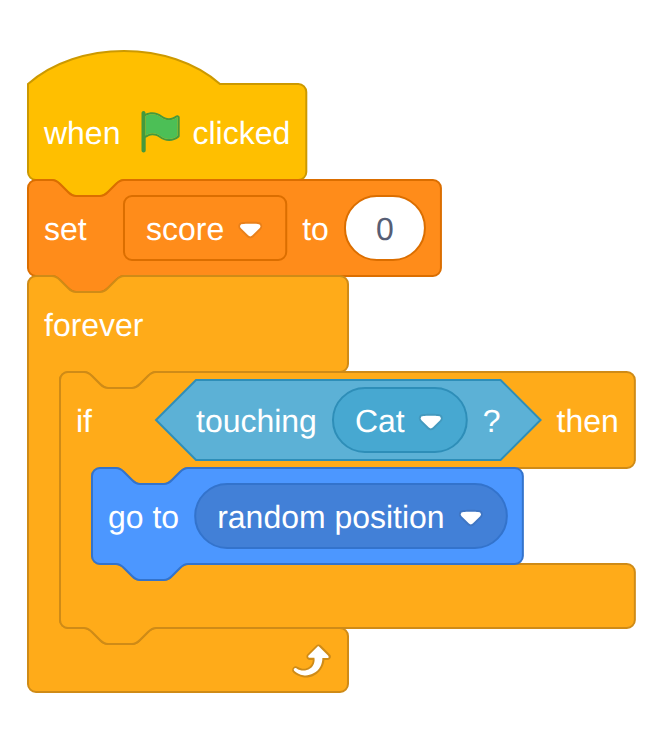
Drag a set score to 0 block into the apple's script, between when green flag clicked and forever.
Your screen should look like this.
-
Click the green flag. The score display reads
0.Warning
The set to 0 block goes above the forever loop, not inside it. Inside the loop, the score would be reset to zero thirty times a second, and the game would never get past 0. If your score is stuck at zero later, this is the first place to look.
Count the Catches
-
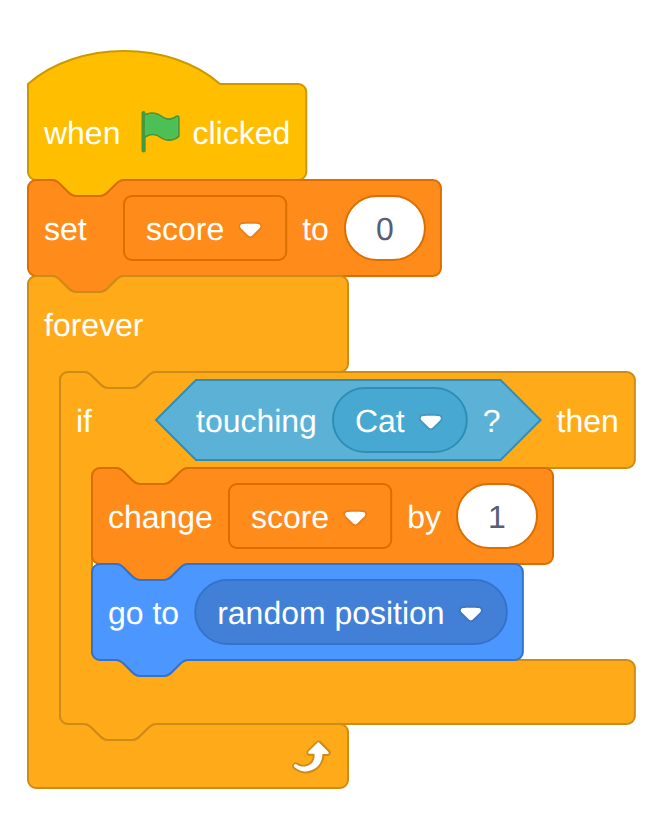
Drag a change score by 1 block into the mouth of the if touching Cat block, above go to random position.
Your screen should look like this.
-
Click the green flag and catch the apple. The score should climb by one for each catch.
Checkpoint
The game remembers. That's the whole trick: set at the start, change when something happens, and the box keeps the total.
Does the score jump by more than one?
If a catch sometimes counts two or three points, the cat is still touching the apple on the next trip through the loop before the apple has moved. Moving go to random position above change score by 1 fixes it: teleport first, then count.
Win the Game
A score that only goes up isn't a game yet. Let's give it an ending.
-
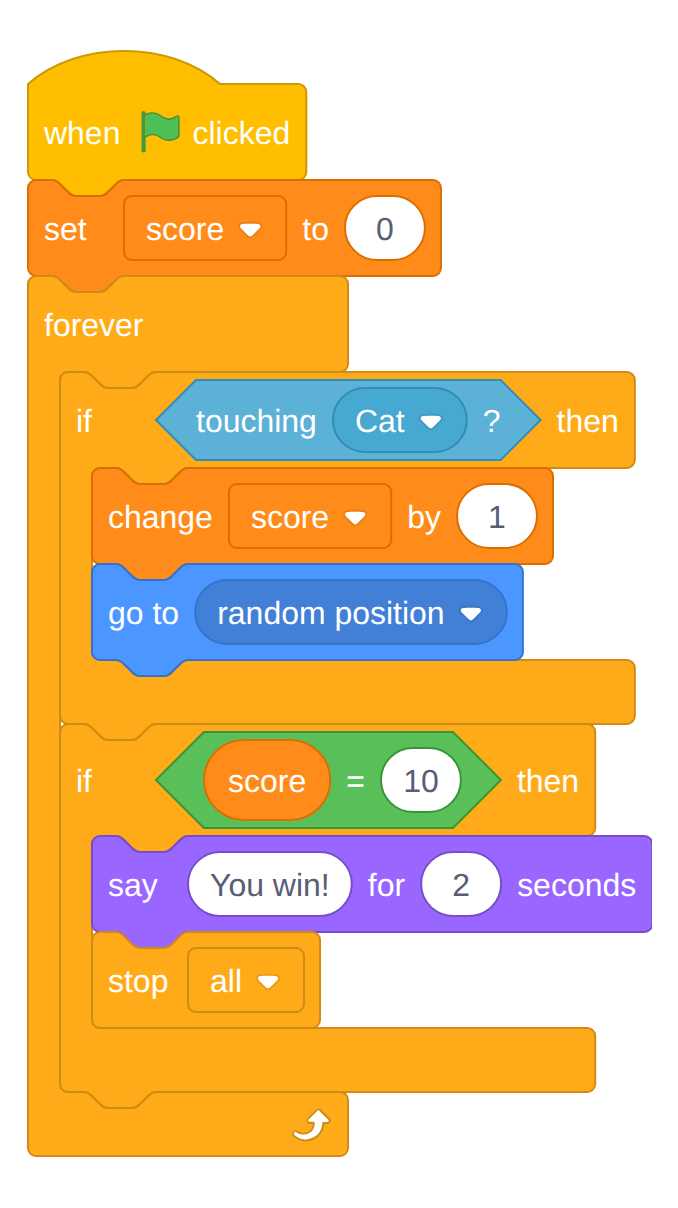
Drag a second if then block from Control into the forever loop, below the if touching Cat block (not inside it).
-
From Operators, drag the = 50 block (the one with two holes and an equals sign) into the new if block's hole.
-
Drag the round
scoreblock from Variables into the left hole of the equals block, and type10in the right hole. -
From Looks, drag say You win! for 2 seconds into the if block's mouth. (Change the words from Hello!.)
-
From Control, drag stop all under the say block.
Your screen should look like this.
-
Click the green flag and catch ten apples. The apple should announce the win and the game should stop. Click the green flag again: the score goes back to 0, because you set it there.
Reading a variable
The round
scoreblock is how a program reads a variable. Drop it anywhere a number goes: an equals block, a say block, a move block.score = 10is a yes-or-no question, which is why it fits in the if block's six-sided hole. -
Click
File ▸ Save now.
Other Things a Variable Can Count
Score is the classic, but the same three blocks handle anything a game needs to remember.
| Variable | Set it to… | Change it when… | Check it for… |
|---|---|---|---|
score |
0 at the start | you collect or hit something, +1 |
winning at a target number |
lives |
3 at the start | you get hit, -1 |
losing at 0 |
time left |
30 at the start | one second passes, -1 |
the game ending at 0 |
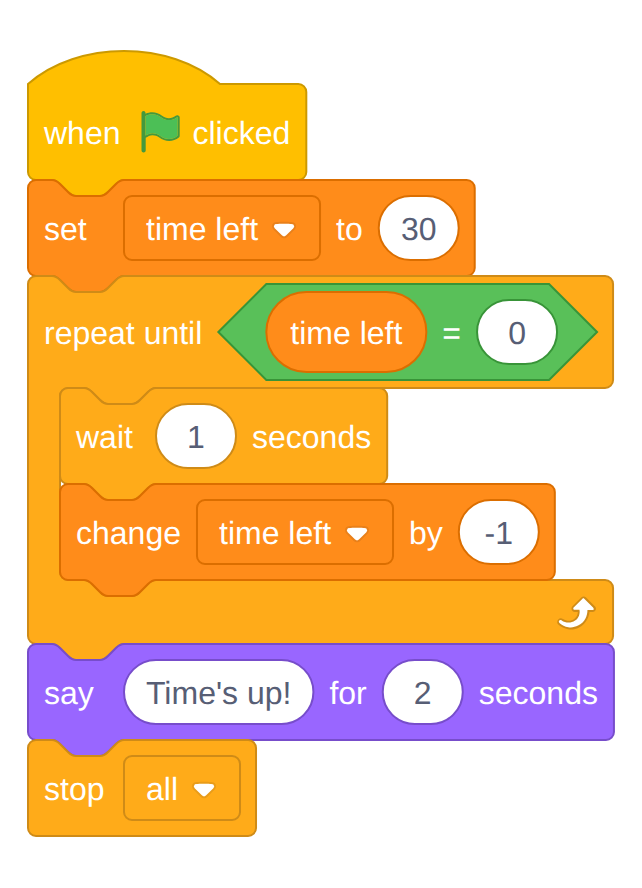
A countdown timer needs one new idea: a loop that runs until something is
true instead of forever. This script works on the stage or any sprite; it
uses a variable named time left.
Now Your Game
-
Open your game project from My Stuff.
-
Decide which variable your game needs:
score,lives, ortime left. Write it in the last row of your Scratch Game notebook plan. -
Add it: make the variable, set it under the green flag, change it when the right collision or event happens, and leave its checkbox on so it shows on the stage.
-
If your plan's win or lose rule depends on it ("you win at 10," "you lose at 0 lives"), build that if then now, the same way as steps 9 to 13.
Challenges
Try these on your own once Apple Chase has a score.
- High score. Make a second variable,
best, that never resets. After a win, ifscoreis greater thanbest, setbesttoscore. - Speed up. Every time the score changes, make the apple's next position a little farther away, or make the cat a little faster. What block would you change, and what would you change it to?
- Two variables at once. Add the countdown timer to Apple Chase. Can you get ten apples before time runs out?
Turn It In
- Nothing to upload today. Apple Chase with a working score is saved under My Stuff; I'll check it on your screen.
- In your Scratch Game notebook entry, the variable row of your plan is filled in, and below the table, one sentence: why does set score to 0 go under the green flag instead of inside the forever loop?
How It's Graded
This lab is worth up to 4 points. One score covers everything you turn in.
| Score | What it looks like |
|---|---|
| 4 — Excellent | Apple Chase shows a score that starts at 0 on every green flag, climbs one per catch, and ends the game with You win! at 10; your own game has a variable set at the start, changed by the game, and visible on the stage; and your notebook sentence explains that the loop would keep resetting the score. |
| 3 — Above Average | Scoring works with a slip or two — a score that doesn't reset, a win that's announced but doesn't stop the game, or a variable in your game that's visible but never changes yet. |
| 2 — Average | The score counts up in Apple Chase but there's no win condition, or your own game has no variable yet. |
| 1 — Below Average | A variable exists but nothing sets or changes it. |
| 0 — Failing | No score in Apple Chase and no variable in your game. |