Tiled Images, Animated Motion, and Health
In this game, heavy weights fall out of a clear blue sky and the alien's only
defense is footwork. You'll paint a scrolling-game-style background from one
tile, let Pygame Zero's animate() function handle the falling for you, and
give the player a row of hearts to lose — plus a proper Game Over screen when
they're gone.
Overview
In this lab you'll draw a repeating background with screen.blit(), move
Actors with the built-in animate() function instead of hand-rolled physics,
track player health with a heart HUD, and use an invincibility countdown so
one hit doesn't drain every heart at once.
Builds on: Dumb Enemies and Smart Enemies — helper functions and collidelist().
Before you start
Open Thonny and start a new program named dodge.py. Save it in your
pygame-zero folder, next to your images folder.
You've got it when…
- The tree background tiles cleanly across the bottom of the screen.
- Weights fall from random positions, accelerating as they drop.
- The player loses one heart per hit, flashing the "hit" image while briefly invincible.
- When the hearts run out, the game shows "Game Over."
Collaboration & AI
Work: On your own. Ask a neighbor for a hand if you're stuck, but the program you submit should be yours.
AI — AIAS Level 1, No AI: This lab is about learning blit(),
animate(), and the health pattern by writing them yourself.
What the levels mean.
New Images
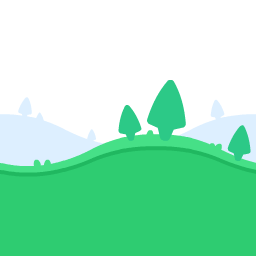
This lab uses six images. If you completed
Getting Set Up for Pygame Zero, they are
already in your images folder.




Setting the Scene
-
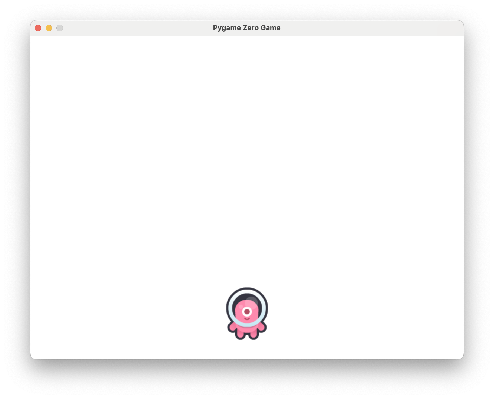
Let's start a new game with the code below.
dodge.pyimport pgzrun WIDTH = 800 HEIGHT = 600 player = Actor("alien") player.x = WIDTH / 2 player.y = HEIGHT - 100 def draw(): screen.fill("white") player.draw() pgzrun.go()Try your program. Your screen should look like this.
Tiled Backgrounds
Sometimes we want to draw images that don't need to move or update, such as
images in the background. The blit() function draws images directly to the
screen without the need to create Actors.
-
Add the highlighted line.
Try your program. Your screen should look like this.
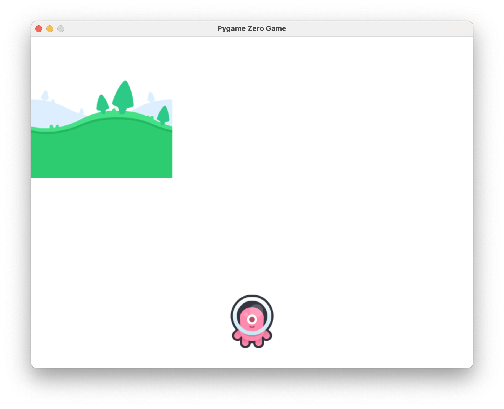
The image is drawn with its top-left corner at
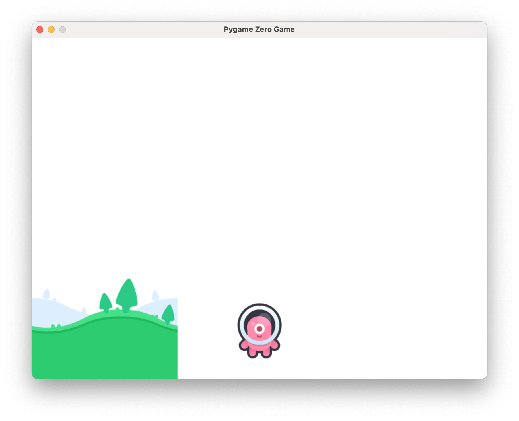
(0, 0). That is, x = 0 and y = 0.Let's move the image to the bottom of the screen. The image is 256 pixels wide and 256 pixels tall. To move it to the bottom, its upper-left corner will need to be at the height of our screen minus 256 pixels.
-
Update this line.
Try your program. Your screen should look like this.
This image is designed to be tiled. Notice how the height of the grass at the left edge of the image is the same as at the right edge. Let's use a loop to draw this image multiple times, side by side.
-
Update the line again. Put it inside a for-loop that will run 4 times, and update the x-position of each image based on the loop number,
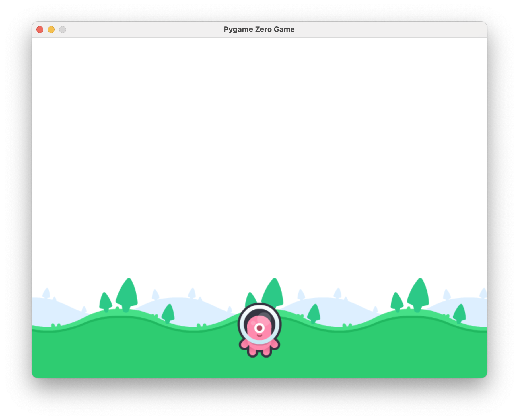
i.Try your program. Your screen should look like this.
Now we'll add a helper function to deal with moving our player when keyboard keys are pressed, and to wrap the player around the screen when it goes off the left or right edge.
-
Add this function to your program. We'll call it
move_player(), but it could be named anything you like. -
Add the
update()function to your program, and call our newmove_player()function from it.Try your program. You should be able to move your player left and right and have it wrap around both the left and right edges of the screen.
Motion with Animations
For this game, we're going to repeatedly drop heavy weights from the sky. Our player will have to move side to side to dodge the falling weights.
We've seen how we can manage movements like simulating gravity and bouncing
ourselves. Pygame Zero makes it easy to move objects without doing all the
work, with the animate() function.
-
Add the highlighted lines just after creating the player Actor.
- Create an empty list to hold some Actors for the weights.
- Make a loop to create each weight Actor. We'll create 3 (the
range(3)part). - Set each weight's y position to be slightly off the bottom of the screen. We'll see why shortly.
- Add each weight Actor to the list of
weights.
-
Add another loop to the
draw()function to draw each of the weights.We're going to position the weights randomly, so we'll need access to the
randomlibrary. -
Add the highlighted line as the second line of your program, right below
import pgzrun— import lines live together at the top. -
Make a helper function to move the weights. Notice the use of the new
animate()function! Here's how it works:- For each weight…
- …if the weight has dropped below the bottom of the screen
(
w.y >= HEIGHT), - …position it at a random spot left-to-right
(
w.x = random.randint(0, WIDTH)), - …and return it to the top of the screen (
w.y = 0), - …then call the
animate()function to manage making the weight drop.
def move_weights():
    for w in weights:
        if w.y >= HEIGHT:
            w.x = random.randint(0, WIDTH)
            w.y = 0
            animate(w, "linear", 1.0, y=HEIGHT)
The
animate()function takes several inputs:- The Actor you want to animate.
- The type of motion (see the table below).
- The duration — the number of seconds to make the move.
- The new position to move the Actor to (
x=and/ory=).
Here are the options for the type of motion.
Motion type What it does linearAnimate at a constant speed from start to finish accelerateStart slower and accelerate to finish decelerateStart fast and decelerate to finish accel_decelAccelerate to the midpoint and decelerate to finish end_elasticGive a little wobble at the end start_elasticHave a little wobble at the start both_elasticHave a wobble at both ends bounce_endAccelerate to the finish and bounce there bounce_startBounce at the start bounce_start_endBounce at both ends -
Add a call to our
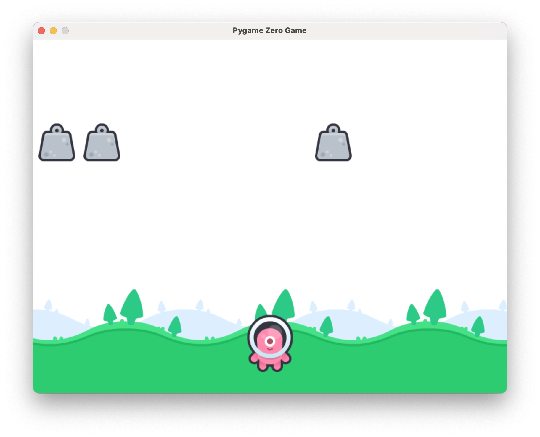
move_weights()helper function from theupdate()function.Try your program. Your screen should look like this, with falling weights.
This works well, but the weights always fall at the same speed. Let's select a different type of motion from the table above so they fall more realistically — faster and faster.
-
Update this line.
Now the weights fall more realistically, but they are falling too fast. Let's adjust the duration so the animation takes longer, which will slow the falling weights down.
-
Update this line.
Health
Let's keep track of the player's health. Every time a weight hits the player, we'll reduce it.
-
Add two new variables on the player named
healthandinvincible.healthwill be the player's current level of health. For this example, full health will be 5.invinciblewill be a period of time where the player can't take more damage after losing some health. This will keep a single weight from reducing all the player's health at once.
-
We'll use images of hearts for our health bar. Create an empty list to hold them, and fill it with new Actors to hold each heart image. Add the highlighted lines just below the player setup.
-
Add a loop to the
draw()function to draw each heart. Do this last in the function, so the hearts are drawn on top of everything else. -
Make a new helper function to check if a weight is touching the player. If so, remove some health. Here's how it works:
- Check if any weight in the
weightslist is colliding with the player. - If so, reduce the player's health by one.
- Update the image for the heart for that health level.
- Check if any weight in the
-
Call the
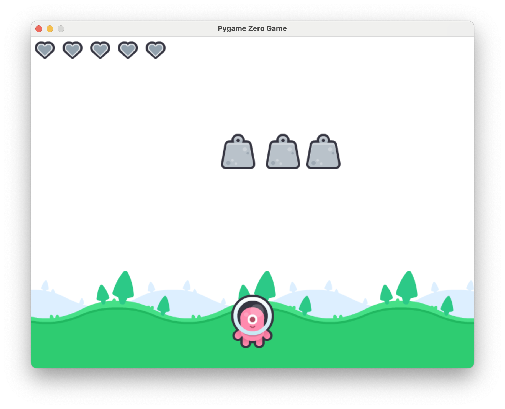
check_damage()function from theupdate()function.Try your program. Your screen should look like this.
The game is almost done — but any time the player is hit with a weight, it loses all its health. This is because the weight continues to collide with the player for many frames as it falls past.
We need a countdown timer for when the player takes damage, before it can take damage again.
-
Make the highlighted modifications to only reduce health if it has been long enough since the last hit, and to restart the countdown when the player gets hit.
def check_damage(): # Count down from the last time we took damage if player.invincible > 0: player.invincible = player.invincible - 1 # If a weight touches us and the invincibility counter has run out, # reduce the health and restart the countdown from 20 frames. if player.collidelist(weights) != -1 and player.invincible == 0: if player.health >= 0: player.health = player.health - 1 health[player.health].image = "hud_heart_empty" player.invincible = 20 -
Finally, let's change the look of the player during the invincibility countdown to show that it has taken damage. Add the highlighted lines.
def check_damage():
    # Count down from the last time we took damage
    if player.invincible > 0:
        player.invincible = player.invincible - 1
        player.image = "alien_hit"
    else:
        player.image = "alien"

    # If a weight touches us and the invincibility counter has run out,
    # reduce the health and restart the countdown from 20 frames.
    if player.collidelist(weights) != -1 and player.invincible == 0:
        if player.health >= 0:
            player.health = player.health - 1
            health[player.health].image = "hud_heart_empty"
            player.invincible = 20
Your game should now work, with health being reduced one heart per hit.
Game Over
If the player's health falls to zero, let's display a "Game Over" screen.
-
Add the highlighted if-statement just after filling the screen white in the
draw()function, and indent all the following lines so they are inside of it.def draw(): screen.fill("white") if player.health > 0: for i in range(4): screen.blit("background_color_trees", (i * 256, HEIGHT - 256)) player.draw() for w in weights: w.draw() for h in health: h.draw()Warning
Every drawing line after the
ifmust gain one extra level of indentation, or it will run whether the player has health or not. -
Add an else-statement to go with the
ifthat will draw the Game Over screen instead of the game if the player's health is not greater than zero. Add the highlighted lines.
Turn It In
- Submit your
dodge.pyfile in Google Classroom.
How It's Graded
This lab is worth up to 4 points. One score covers everything you turn in.
| Score | What it looks like |
|---|---|
| 4 — Excellent | The trees tile seamlessly across the bottom, weights fall from random spots with accelerate motion, each hit costs exactly one heart while the alien flashes its hit image through the invincibility countdown, and Game Over appears when the hearts run out. The whole chain works together. |
| 3 — Above Average | Everything is in place with a minor slip — weights falling linear instead of accelerating, or an invincibility window short enough that a slow weight double-dips. |
| 2 — Average | The background and falling weights work, but one hit drains every heart (no invincibility), or there's no Game Over screen. |
| 1 — Below Average | Little beyond the scene and the tiled background. |
| 0 — Failing | Nothing submitted, or the program doesn't run. |