Forever Loops and WASD
Every video game you have ever played is, underneath, one loop that never ends: check the controls, move things, check if anything hit anything, draw the screen, repeat. Sixty times a second, for as long as you play. Today you build that loop, and by the end of class a cat is chasing an apple around the stage with the keyboard. That's a game. A small one, but a game.
Overview
In this lab you'll learn the forever loop, use it to read the keyboard so a sprite moves smoothly in four directions with the W, A, S, and D keys, and use an if-then block to detect when two sprites touch. This is the skeleton of the game you'll design in the next project. You'll follow along with me on the projector.
Builds on: Your Scratch Play —
you'll reuse sprites, go to x: y:, and the green flag; the play's
broadcasts take a break today.
Before you start
Sign in to Scratch, click Create, and rename the new project Apple Chase.
You've got it when…
- Holding W, A, S, or D moves the cat smoothly up, left, down, or right, and it keeps moving as long as you hold the key.
- When the cat touches the apple, the apple jumps to a random spot.
- The cat starts in the center every time the green flag is clicked.
- Apple Chase is saved in My Stuff.
Collaboration & AI
Work: On your own, following along with the class.
AI — AIAS Level 1, No AI: The forever loop is the most important block in this unit. Build it with your own hands. What the levels mean.
The Obvious Way (and Why It's Wrong)
-
Click the cat in the sprite list and rename it
Cat. -
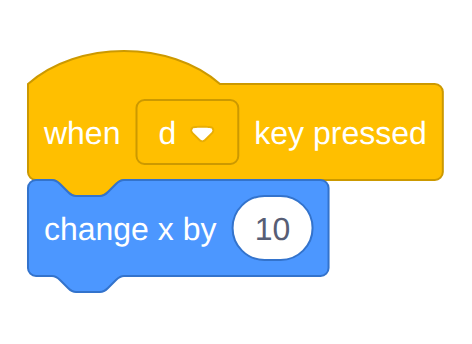
From Events, drag out when space key pressed. Click the dropdown and change space to d.
-
From Motion, snap change x by 10 under it.
Your screen should look like this.
-
Click the stage once (so the keyboard talks to Scratch), then hold down the D key. Watch closely.
The cat moves once, freezes for a moment, then stutters along. That pause is your computer's keyboard repeat delay, the same one that happens when you hold a letter in a document. Fine for typing. Terrible for a game. Drag that script back to the palette to delete it; we're going to do this properly.
Build the Game Loop
-
From Events, drag out when green flag clicked.
-
From Control, snap a forever block under it. Notice its shape: it has a mouth. Blocks placed inside the mouth run over and over, and nothing can be snapped below a forever block because it never finishes.
The forever loop
A loop repeats the blocks inside it. A forever loop repeats them until the red stop sign is clicked. Scratch runs through the mouth of the loop about thirty times every second, so anything you put inside gets checked thirty times a second. That is fast enough to feel instant, which is exactly what a game needs.
-
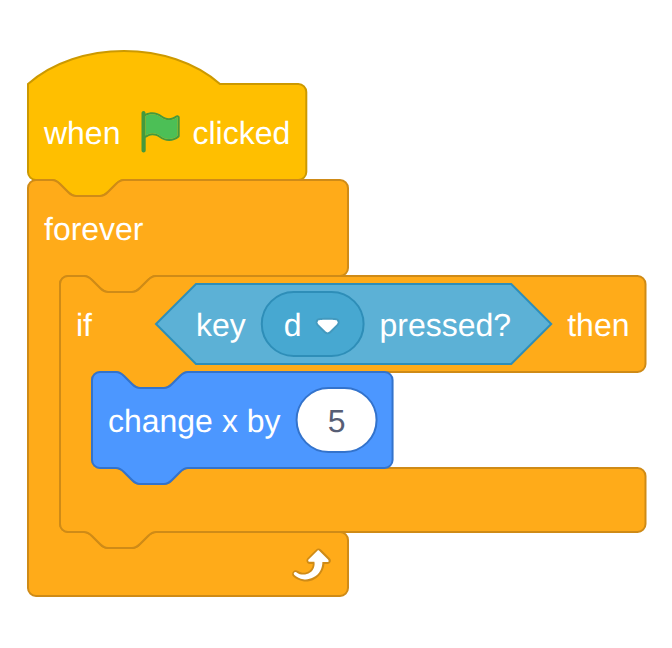
From Control, drag an if then block into the mouth of the forever loop. It has a six-sided hole after the word if.
-
From Sensing, drag key space pressed? into that six-sided hole. Set its dropdown to d.
Conditionals
The if then block is a conditional: it runs the blocks in its mouth only when the condition in the hole is true. Six-sided blocks are questions with yes-or-no answers, and only six-sided blocks fit the six-sided hole.
-
From Motion, drag change x by 10 into the mouth of the if then block and change the
10to5.Your screen should look like this.
-
Click the green flag, click the stage, and hold D. The cat should glide to the right smoothly, with no stutter, for as long as you hold the key.
Checkpoint
Smooth movement means the loop is doing its job: thirty times a second it asks "is D down?" and nudges the cat 5 steps if so. Every game controller in the world works this way.
-
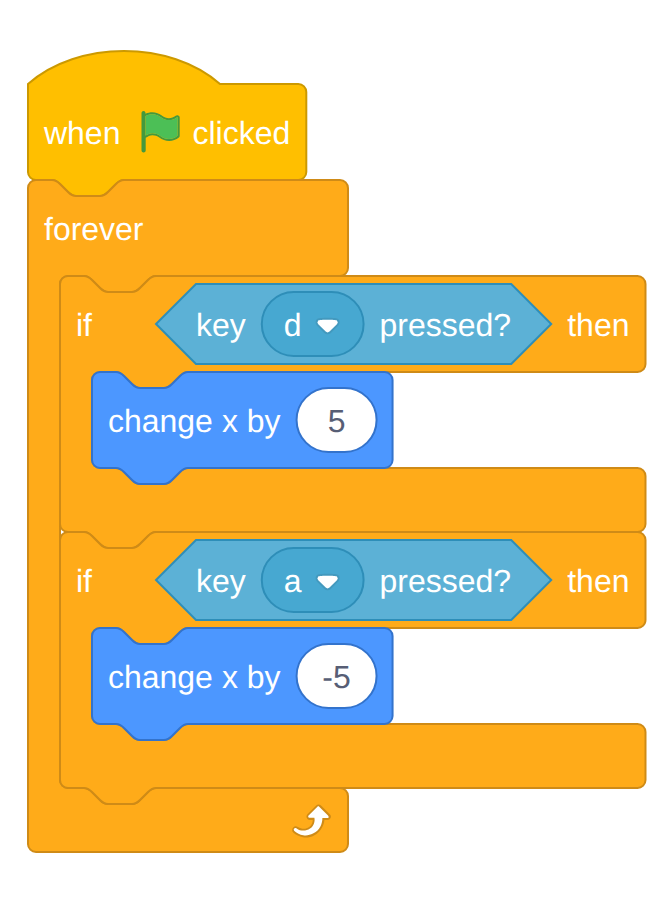
Right-click the if then block and choose Duplicate. Drop the copy into the forever loop under the first one. Change its key to a and its number to
-5.Your screen should look like this.
-
Click the green flag and test both keys. Left and right work; up and down don't exist yet.
-
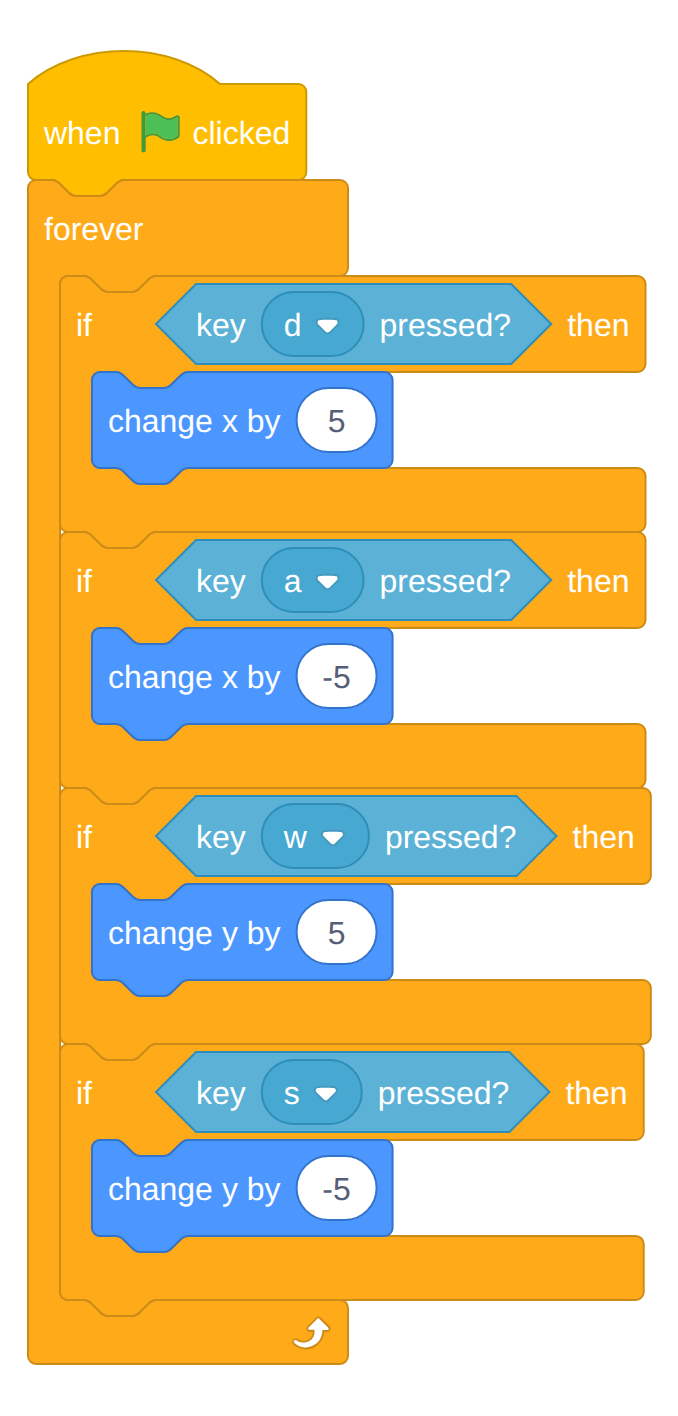
Duplicate the if then block twice more. For these, swap the change x by block for a change y by block from Motion:
- key w, change y by
5 - key s, change y by
-5
Your screen should look like this.
Warning
Up is positive y and down is negative y; check the grid from the first lab if that feels backwards. If the cat goes the wrong way, the sign on the number is the first thing to check.
- key w, change y by
-
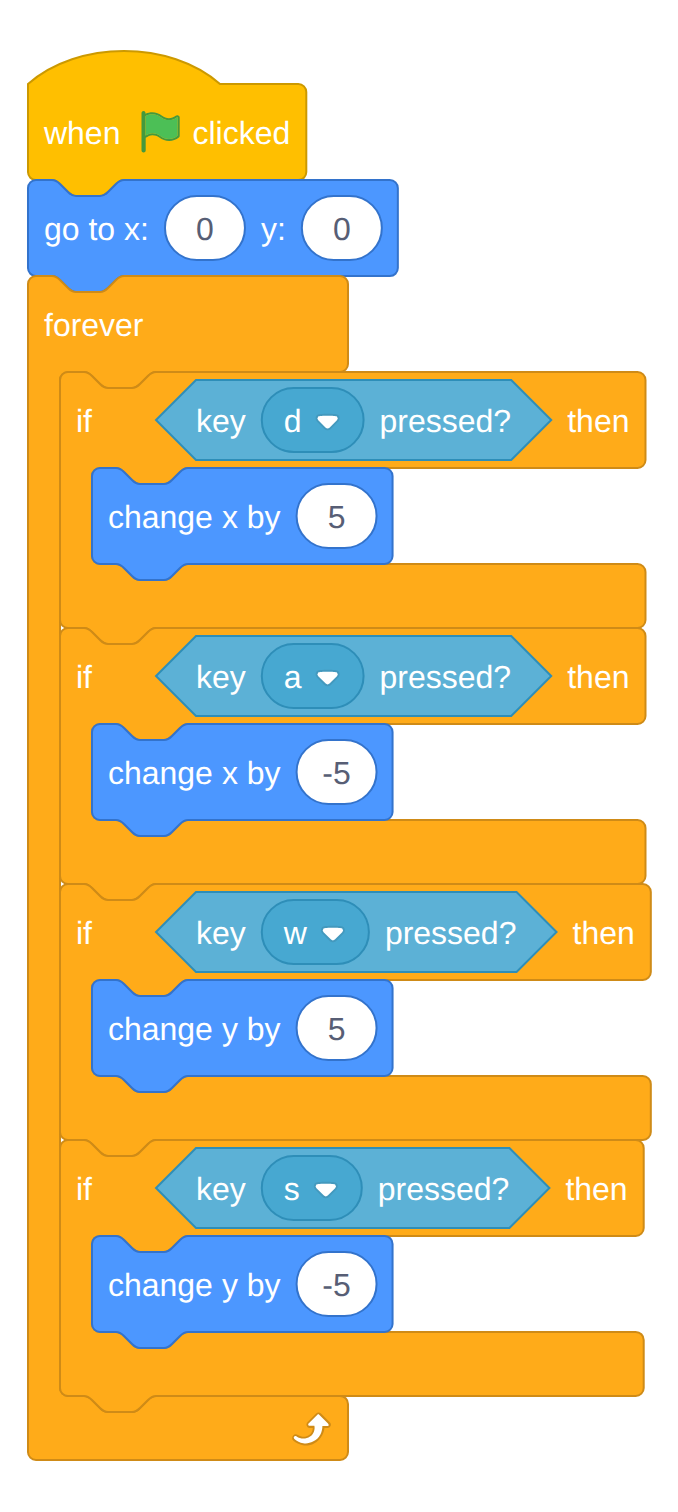
Click the green flag and drive the cat around with WASD. Try two keys at once (W and D together). Diagonal movement is free; the loop checks every key every time around.
-
From Motion, drag a go to x: y: block between when green flag clicked and forever. Set it to
x: 0andy: 0, so every game starts from the center.Your screen should look like this.
Something to Chase
-
Click Choose a Sprite (the magnifying glass in the bottom right corner of the sprite list), search for
apple, and add the Apple. -
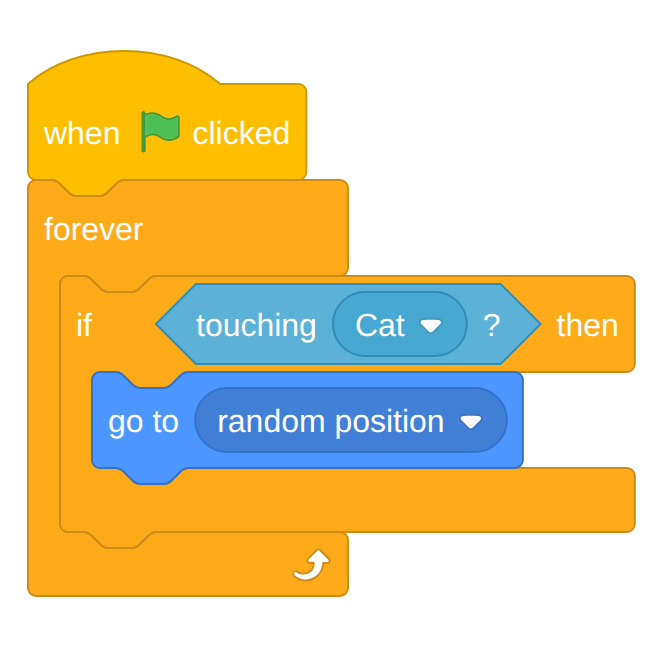
With Apple highlighted in the sprite list, build this script: when green flag clicked, a forever loop, and an if then inside it.
-
From Sensing, drag touching mouse-pointer? into the if then hole. Click its dropdown and choose Cat.
-
From Motion, drag go to random position into the mouth of the if then.
Your screen should look like this.
Collisions
A collision is two sprites touching. The touching block asks that question thirty times a second inside the loop, so the moment the cat's picture overlaps the apple's, the apple teleports. Scoring points, losing lives, and picking up items all start with this one block.
-
Click the green flag and chase the apple. Catch it a few times.
-
Click
File ▸ Save now.
Checkpoint
Keyboard control, a loop, a conditional, and a collision. Add a score and a way to win, and you'd have a finished game. Those come next.
Challenges
Try these on your own once the chase works.
- Speed. Change every
5to10. Then try2. Which feels right for a game? - Stay on stage. In Motion, find if on edge, bounce. Where in the loop should it go?
- Arrow keys. Make the arrow keys work in addition to WASD. How many more if blocks is that?
- A second apple. Right-click the apple in the sprite list and choose duplicate. Does the copy already work? Why?
Turn It In
- Nothing to upload today. Your Apple Chase project is saved in your Scratch account under My Stuff; I'll check it on your screen.
- In your Scratch notebook entry, answer in one or two sentences: why does the forever loop make the keys work better than the when key pressed block did?
Credit: Adapted for sixth grade from Dan Schellenberg's Computer Science 20: Controlling a Character with WASD, used under a Creative Commons Attribution-ShareAlike 4.0 license.
How It's Graded
This lab is worth up to 4 points. One score covers everything you turn in.
| Score | What it looks like |
|---|---|
| 4 — Excellent | Holding any of W, A, S, or D moves the cat smoothly in the right direction from inside a single forever loop; the cat starts at the center on every green flag; the apple jumps to a random spot when touched; and your notebook answer explains that the loop checks the keys over and over instead of waiting for the computer's key repeat. |
| 3 — Above Average | The chase works with a slip or two — one direction reversed, no reset to the center, or a notebook answer that says "it's smoother" without saying why. |
| 2 — Average | Some keys move the cat and some don't, or the movement is still built from when key pressed blocks, or the apple never reacts to a touch. |
| 1 — Below Average | A forever loop with nothing working inside it. |
| 0 — Failing | No Apple Chase project in My Stuff. |