EarSketch: Effects
The difference between a sound and your sound is what you do to it. This lab runs your tracks through the effects rack: echo, reverb, and a volume fade you control from code.
Overview
We will alter existing sounds to produce new and unique sounds with effects, and use an envelope to change an effect over time instead of setting it once.
Before you start
Open your song script in EarSketch. This lab continues the song you've been building.
You've got it when…
- A reverb effect is applied to at least one track.
- A delay effect is applied to at least one track.
- An envelope fades the volume up at the beginning of at least one track.
- At least three other effects from Section 10 are applied to your tracks.
Collaboration & AI
Work: On your own. Trade headphones with a neighbor for a second opinion on your mix.
AI — AIAS Level 1, No AI: Choose and tune the effects with your own ears. What the levels mean.
Adding Effects
-
Read the following EarSketch Curriculum sections and apply them to your song.
-
Apply a reverb effect to at least one of your tracks. Reverb makes it feel like the sound is played in a large room. See Section 10.12 for information on how to use the REVERB effect.
-
Apply a delay effect to at least one of your tracks. Delay repeats a sound after a short pause, like an echo. See Section 10.4 for information on how to use the DELAY effect.
-
Use an envelope to fade the volume up at the beginning of one of your tracks. Volume is related to loudness. See Section 10.15 for information on how to use VOLUME and Section 5.3 for an example of using an envelope to ramp up the volume on a track.
-
Browse some other effects and select at least three to apply to your tracks. Try adding multiple effects to the same track. Some choices are:
- BANDPASS (Section 10.1)
- CHORUS (Section 10.2)
- COMPRESSOR (Section 10.3)
- DISTORTION (Section 10.5)
- EQ3BAND (Section 10.6)
- FILTER (Section 10.7)
- FLANGER (Section 10.8)
- PAN (Section 10.9)
- PHASER (Section 10.10)
- PITCHSHIFT (Section 10.11)
- RINGMOD (Section 10.13)
- TREMOLO (Section 10.14)
- WAH (Section 10.16)
Turn It In
Download your script from EarSketch and submit it:
-
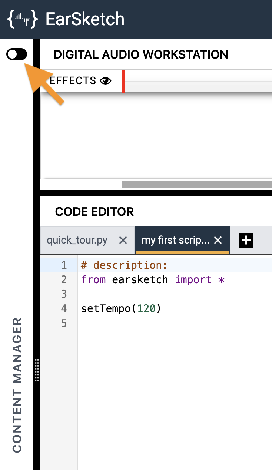
Click the toggle switch to expand the Content Manager.
-
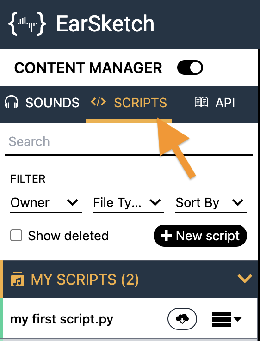
Select the SCRIPTS tab.
-
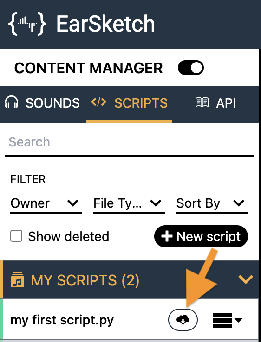
Find your song's script in the MY SCRIPTS panel and click its Download button
 .
.
-
Click the download button
 next to the Script option.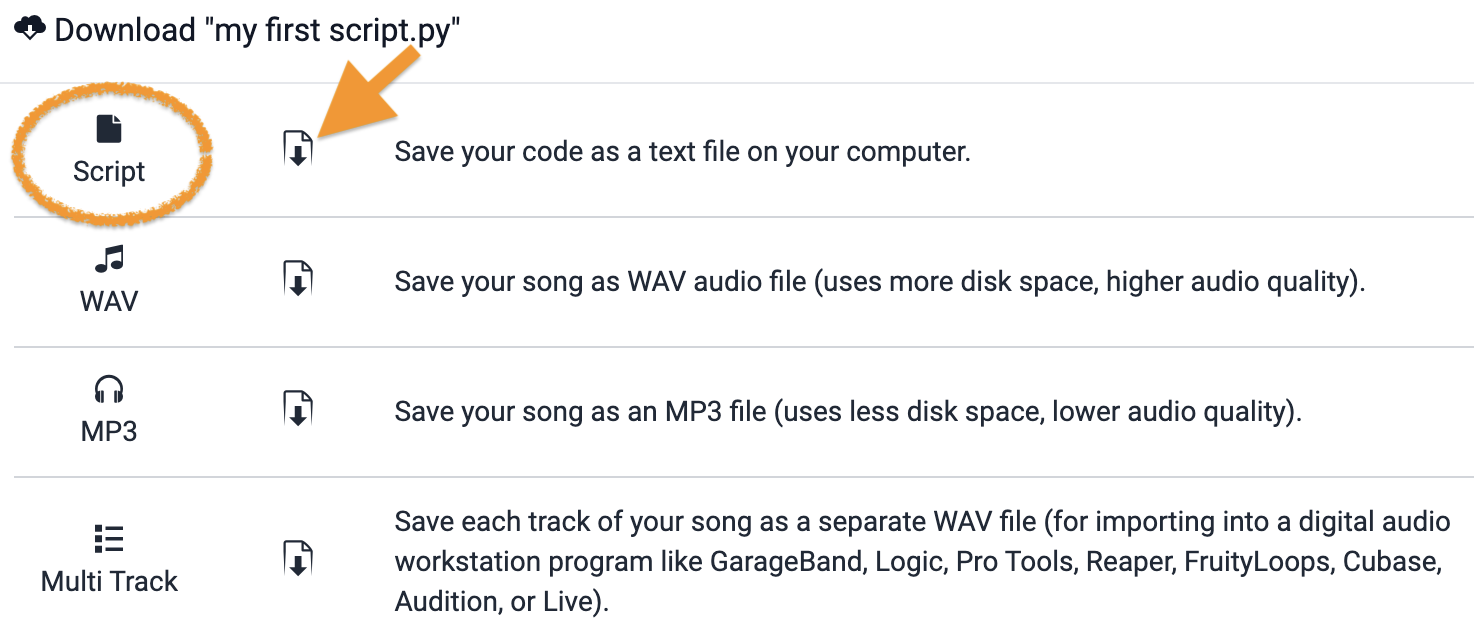
-
Turn in the downloaded Python (
.py) file the way your teacher has asked for it (Google Classroom, your project notebook, or wherever this class collects work).
- Your song's script (
.pyfile), turned in as instructed.
How It's Graded
This lab is worth up to 4 points. One score covers everything you turn in.
| Score | What it looks like |
|---|---|
| 4 — Excellent | Reverb on a track, delay on a track, a volume envelope that fades a track in, and three more effects of your choosing — each one audible, and each one a choice you can defend with your ears. |
| 3 — Above Average | All six effects present; one is technically applied but set so close to the defaults nobody can hear it. |
| 2 — Average | Reverb and delay made it in; the envelope — the one that changes over time — didn't. |
| 1 — Below Average | One effect, or effect calls that error out when the script runs. |
| 0 — Failing | Nothing turned in. |