Making an Input Device
Let's build a device that will act like a keyboard for the computer it is connected to. By the end, your board's buttons will control a video game.
Overview
You'll program the Circuit Playground Express to identify itself to the computer as a USB keyboard, then make button A send a key press. Once one button works, you'll map both buttons to keys of your choice and use them to play a game.
Builds on: Lighting Effects With Functions — you'll reuse if statements, button checks, and the setup-then-infinite-loop structure.
Before you start
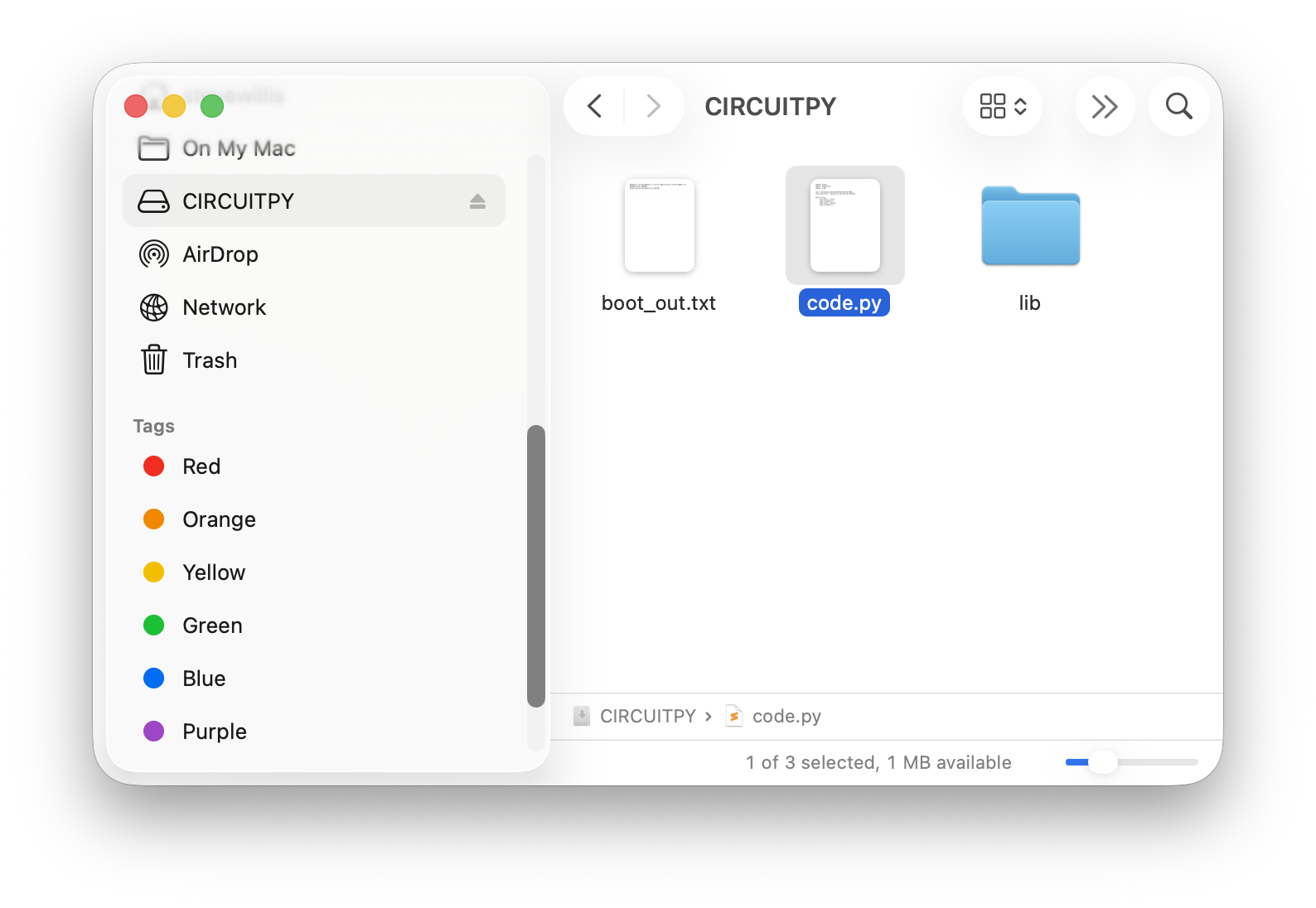
Connect your Circuit Playground Express and open code.py on the
CIRCUITPY drive. If you don't see the drive, ask for help before
continuing.
You've got it when…
- Pressing button A sends a single letter to the computer.
- One press sends one key — holding the button doesn't repeat it.
- Both buttons send keycodes you chose to control a game.
Collaboration & AI
Work: On your own. Ask a neighbor for a hand if you're stuck, but the code you submit should be yours.
AI — AIAS Level 1, No AI: This lab is about learning the press-release-wait pattern by writing it yourself, so set AI aside for the code this time. What the levels mean.
Acting as a Keyboard
Do these steps before the infinite loop.
-
Import the libraries we'll need.
-
Create a Keyboard object.
Put all the lines below inside the infinite loop.
-
Create an if statement to check if the A button is pressed.
-
Inside that if statement, send a key press. This will tell the computer that the A key on the keyboard is being pressed.
-
Still inside the if statement, release the key. This will tell the computer that the A key has been released and is no longer being pushed.
-
Still inside the if statement, add an inner loop to wait for the button to be released before another key press will be detected.
All the loop code above should look like this (with some comments added for your information):
while True:
# Make button A act like a keyboard key
    if cp.button_a:
        print("Button A pressed!")
keyboard.press(Keycode.A) # press...
keyboard.release_all() # release!
        while cp.button_a:
            pass  # wait for the button to be released!
Try your program.
Careful!
Your board now works like a keyboard, and when you press button A, it will send the letter A to your computer. This might change your code! Click somewhere harmless before pressing the button.
Tasks
- Add code like the above to also check for button B being pressed.
-
Change the keycodes that are sent with button A and button B to control a video game. Geometry Dash or Drift Boss are good choices! Here is a list of all the keycode names, and some common ones you might want to use:
Keycode.SPACEKeycode.RETURNKeycode.UP_ARROWKeycode.DOWN_ARROWKeycode.LEFT_ARROWKeycode.RIGHT_ARROWKeycode.WKeycode.AKeycode.SKeycode.D
-
Modify the code for one button to send a sequence of multiple keypresses when that button is pressed once. For example, you could send the keys to make a video game character jump and attack with a single press!
- You might need to insert
time.sleep()between key presses and adjust the timing to work with a particular game.
- You might need to insert
Turn It In
- Submit your
code.pyfile. You'll find it on the CIRCUITPY drive that appears when your board is connected and turned on.
How It's Graded
This lab is worth up to 4 points. One score covers everything you turn in.
| Score | What it looks like |
|---|---|
| 4 — Excellent | Your code.py maps both buttons to keycodes you chose for a game, one press sends exactly one key — press, release_all(), and the wait-for-release loop all present on both buttons — and the board actually plays the game. |
| 3 — Above Average | Both buttons send keys, with a slip — one button repeats when held because its wait loop is missing, or a keycode that doesn't fit the game you picked. |
| 2 — Average | Button A works but button B was never wired up, or presses spam the computer because the press-release-wait pattern is incomplete. |
| 1 — Below Average | The board never sends a key press, or code.py doesn't run. |
| 0 — Failing | No code.py submitted. |