EarSketch: Getting Started
Musicians and programmers write computer code to create new sounds, effects, and songs. Starting today, so do you. In this unit you'll learn computer science and music technology side by side, using Python to create your own music.
Overview
You'll create an EarSketch account, work through the first three sections of
the EarSketch Curriculum, and write your first song: several sounds, on
several tracks, starting on measures you choose with the fitMedia()
function.
You've got it when…
- Your script calls
fitMedia()at least three times. - Your song plays sounds on at least three tracks.
- At least one sound starts after the first measure.
- Your sounds are different from the ones used in the curriculum's examples.
Collaboration & AI
Work: On your own. Headphones on — the classroom doesn't need ten songs at once.
AI — AIAS Level 1, No AI: This unit is about learning Python by making music with it, so write your own code. What the levels mean.
Create an EarSketch Account
-
Visit the EarSketch website.
-
Click the Create / Reset Account button and create a new account.

Warning
It is strongly recommended that you provide your NPA email address for password recovery! An account with no recovery email is one forgotten password away from starting over.
Your First Song
-
Read these EarSketch Curriculum sections and follow the instructions to get started.
- Section 1.1
- Section 1.2 — choose Python (not Javascript!)
- Section 1.3
-
Modify your new script from the examples in Section 1.3 to use new sounds on different tracks that start on different measures.
Turn It In
Download your script from EarSketch and submit it:
-
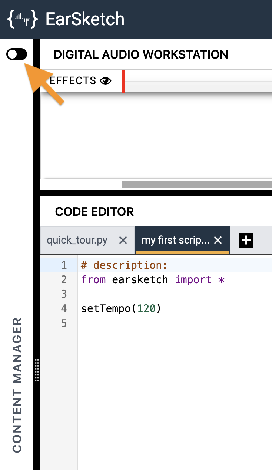
Click the toggle switch to expand the Content Manager.
-
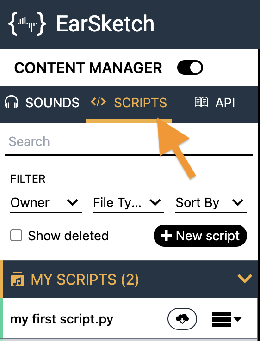
Select the SCRIPTS tab.
-
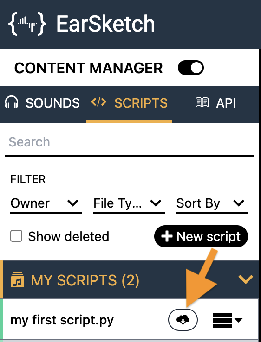
Find the script you created in Curriculum Section 1.2 in the MY SCRIPTS panel and click its Download button
 .
.
-
Click the download button
 next to the Script option.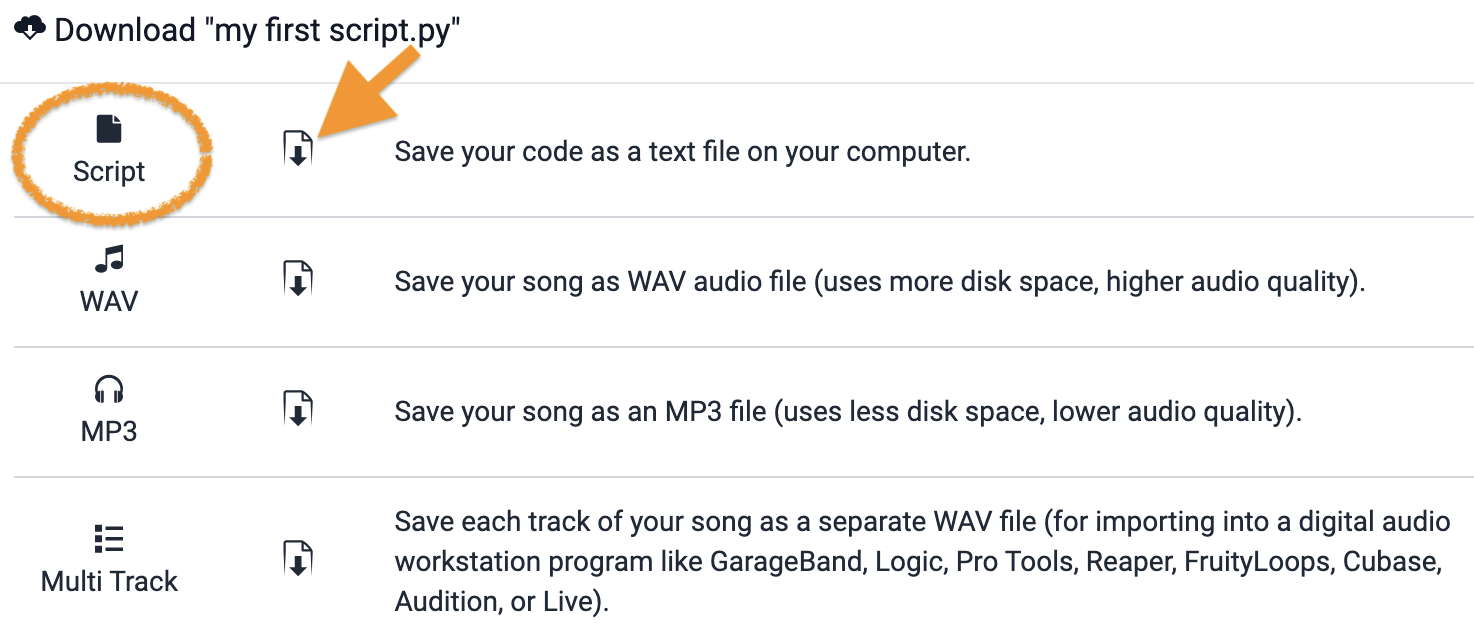
-
Turn in the downloaded Python (
.py) file the way your teacher has asked for it (Google Classroom, your project notebook, or wherever this class collects work).
- Your song's script (
.pyfile), turned in as instructed.
How It's Graded
This lab is worth up to 4 points. One score covers everything you turn in.
| Score | What it looks like |
|---|---|
| 4 — Excellent | Your script runs without errors and hits every requirement — three or more fitMedia() calls, three or more tracks, at least one sound entering after measure 1 — using sounds you chose yourself, arranged so the entrances sound intentional rather than accidental. |
| 3 — Above Average | All four requirements met with a slip — a sound borrowed from the curriculum's examples, or an entrance that lands somewhere odd. |
| 2 — Average | The script plays, but half the checklist is missing — everything on one track, or the example code with the names changed. |
| 1 — Below Average | An account and a script that errors out, or a script that never made it out of Section 1.3. |
| 0 — Failing | Nothing turned in. |