Random Numbers, Mouse Clicks, and Keeping Score
Time for a game you can actually win — or at least rack up points in. The player tries to "bop the alien" by clicking on it with the mouse. Every hit scores a point, and the alien respawns somewhere new so nobody can just park the cursor and click.
Overview
In this lab you'll draw text on the screen, respond to mouse clicks with
on_mouse_down(), keep score in a variable and display it with a formatted
string, and use the random library to move the alien somewhere unpredictable.
Builds on: Gravity, Jumping, and Bouncing — Actors and the draw() / update() structure.
Before you start
Open Thonny and start a new program named bop_the_alien.py. Save it in
your pygame-zero folder, next to your images folder.
You've got it when…
- A score label shows in the corner of the screen.
- Clicking the alien adds a point, and the score on screen updates.
- The alien respawns at a random position after every hit.
Collaboration & AI
Work: On your own. Ask a neighbor for a hand if you're stuck, but the program you submit should be yours.
AI — AIAS Level 1, No AI: This lab is about learning mouse input and f-strings by writing them yourself, so set AI aside for the code. What the levels mean.
Setting the Scene
Let's make a simple game. The player will try to "bop the alien" by clicking on it with the mouse. When the alien is clicked, it will disappear and reappear somewhere else on the screen. We'll keep score for how many times the alien is clicked on.
-
Start your new file with the bookends and make the screen 800 pixels wide and 600 pixels tall.
-
Create the alien Actor.
- We'll still use the
alien.pngimage, but this time let's name the variabletarget. - Set the starting position of the alien to the center of the screen.
LET THE COMPUTER DO THE MATH! We divide
WIDTHandHEIGHTby 2 to get the point in the center.
- We'll still use the
-
Create the
draw()function.- Fill the screen with a color.
- Draw the target, our alien.
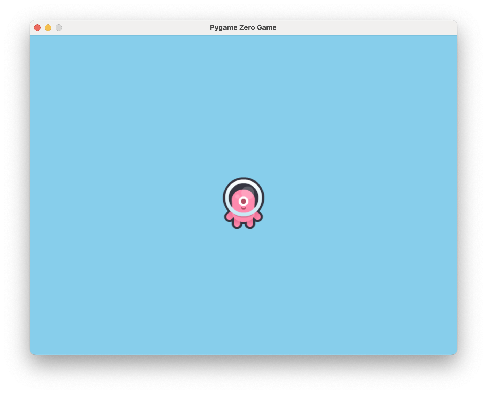
Try your program. Your screen should look like this.
Adding Text
Let's add a label for where the score will be shown.
-
Add this line to the bottom of the
draw()function."Score:"is the string we want to write to the screen. Notice that it is in quotes.(20, 20)is the x/y position where the text will be drawn. In this case, it is 20 pixels to the right of the left edge of the screen and 20 pixels down from the top of the screen.fontsize=48defines how large the text will be.color="black"sets the color for the text.
There are many more options for drawing text! Click this link if you want to learn more.
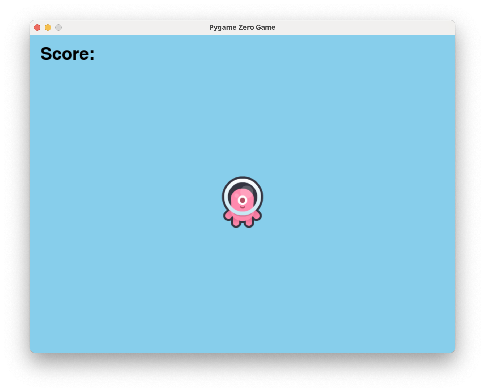
Try your program. Your screen should look like this.
Keeping Score
Now we'll create a new variable on the Actor to keep track of how many times it has been clicked.
-
Add the highlighted line to your Actor setup.
Mouse Clicks
Here's another special function that Pygame Zero uses for mouse clicks. Pygame Zero will call this function each time the mouse is clicked, and will pass us the x/y position of the click.
-
Add the
on_mouse_down(pos)function to the bottom of your file, just abovepgzrun.go(). -
Add code inside the
on_mouse_down(pos)function.poswill be the x/y position that was clicked.- Use the
collidepoint()function to check if the Actor was clicked. - If the Actor was clicked, add 1 to the score.
Now we'll update the text code we added earlier to display the score on the screen.
-
Find the line where we draw the text to the screen in the
draw()function and update it as highlighted below.- The
fbefore the string tells Python that this string will be formatted. - The part inside the
{and}will be replaced with the actual value of that variable. This is the formatting part.
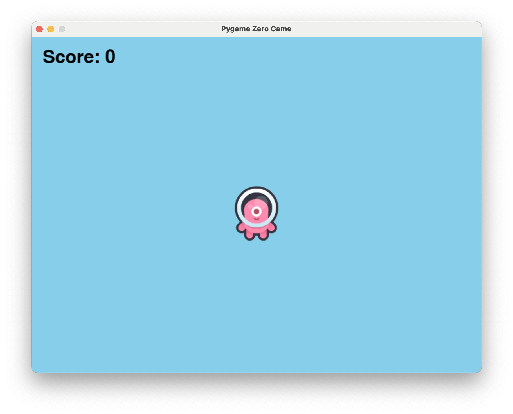
def draw(): screen.fill("skyblue") target.draw() screen.draw.text(f"Score: {target.score}", (20, 20), fontsize=48, color="black")Try your program. Your screen should look like this, and the score should increase when you click on the alien.
- The
Random Numbers
When the alien is clicked, we want it to disappear and "respawn" at a random
new location on the screen. We can use the Python random library to get a
random x and y position to move the alien to.
-
Add the highlighted line as the second line of your program, right below
import pgzrun. Import lines live together at the top of the program, and this one tells Python we want access to therandomlibrary. -
Add the highlighted lines to the
on_mouse_down(pos)function.- The
randint()function is part of therandomlibrary. random.randint()gives us a random number between two other numbers.- We want a random x position between
0(the left edge of the screen) andWIDTH(the right edge of the screen). - We want a random y position between
0(the top edge of the screen) andHEIGHT(the bottom edge of the screen).
def on_mouse_down(pos):
    if target.collidepoint(pos):
        target.score = target.score + 1
        target.x = random.randint(0, WIDTH)
        target.y = random.randint(0, HEIGHT)
Try your program. The alien should move to a random position when clicked with the mouse.
- The
Challenges
Please make these changes on your own!
- Add an
elseto go with theifin theon_mouse_down(pos)function that subtracts one point from the score if a mouse click misses the alien. -
Change the two lines that get random x and y positions in the
on_mouse_down(pos)function to leave a margin so the alien always stays fully on the screen.- Instead of
0, add some space to the left or top of the screen. - Instead of
WIDTHorHEIGHT, subtract some space from the right or bottom of the screen. - Test your solution. Does the alien stay fully on the screen at all times?
- Instead of
Turn It In
- Submit your
bop_the_alien.pyfile in Google Classroom.
How It's Graded
This lab is worth up to 4 points. One score covers everything you turn in.
| Score | What it looks like |
|---|---|
| 4 — Excellent | The score displays and climbs with every bop, the alien respawns somewhere new each hit, and both challenges are done and tested: misses subtract a point, and the margin keeps the alien fully on the screen every time. |
| 3 — Above Average | The game and both challenges are attempted and mostly work — maybe the margin protects only two edges, or a miss subtracts below zero. |
| 2 — Average | Clicking the alien scores points, but the respawn or the challenges are missing. |
| 1 — Below Average | The score label draws but never changes, or the alien ignores the mouse. |
| 0 — Failing | Nothing submitted, or the program doesn't run. |