Getting Set Up for Pygame Zero
Over the next several labs you'll build real video games: an alien dodging a
bee, tanks that hunt you down, weights falling from the sky, and an infinite
runner with costumes and a Game Over screen. Every game studio starts
somewhere. Ours starts with a folder named images.
Overview
In this lab you'll install the Pygame Zero library in Thonny, make a home folder for your games, download every image the whole unit needs in one zip file, and run a tiny test program to prove your setup works. Ten minutes here saves a headache in every lab that follows.
Before you start
Open Thonny. If you can't find it on your computer, ask for help before continuing.
You've got it when…
-
pgzeroshows as installed in Thonny's package manager. - You have a Pygame Zero folder with a folder named
imagesinside it. - The
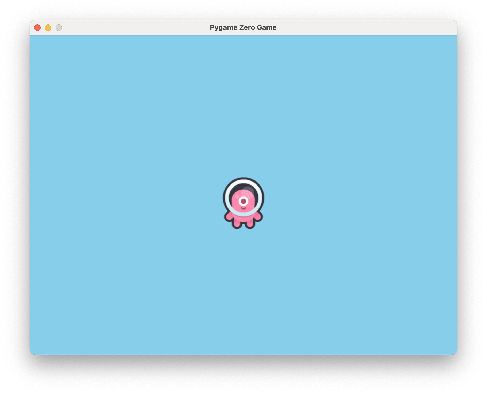
imagesfolder holds all 41 game images from the download. - Your test program opens a window with the alien on a sky-blue background.
Collaboration & AI
Work: On your own. Ask a neighbor for a hand if you're stuck, but do the setup on your own computer.
AI — AIAS Level 1, No AI: This lab is about learning where your files live, and only you know where you put them. What the levels mean.
Install Pygame Zero
Thonny comes with Python built in, but the Pygame Zero library is a separate piece. Thonny has a package manager for exactly this job, so there's nothing to download from a website.
-
In Thonny, open the menu Tools ▸ Manage packages…
-
Type
pgzerointo the search box at the top and click Search on PyPI. -
Click pgzero in the search results, then click Install. When the progress messages stop, click Close.
Warning
The package is named exactly pgzero — no spaces, and no "pygame" in
front. Similarly named packages are not the library we want.
Info
If pgzero already appears in the list of installed packages when the window opens, someone has beaten you to it. Skip to the next section.
Make a Home for Your Games
Every game you write in this unit will live in one folder, next to one shared
images folder. Keeping them together is not just tidiness — Pygame Zero
only looks for images in a folder named images sitting beside your
program.
- In your Documents folder (or wherever your teacher tells you), create a
new folder named
pygame-zero.
Download the Game Images
Your games will star an alien, a bee, two tanks, some hearts, and a small wardrobe of runner costumes. All 41 images are in one zip file.
-
Download the zip file.
-
Double-click the downloaded file to unpack it. On Windows, right-click it and choose Extract All… instead. Either way, you end up with a folder named
images. -
Move the
imagesfolder into yourpygame-zerofolder.
Warning
The folder must be named exactly images — all lowercase, no spaces —
and it must sit inside your pygame-zero folder, next to the programs
you'll write. Pygame Zero will not look anywhere else.
What's in the zip?
All 41 images for the whole unit, so you only do this download once. Each lab also offers its own images as individual downloads, in case one ever goes missing.
Test Your Setup
The smallest possible game will tell us whether everything is in the right place.
-
In Thonny, create a new program and save it as
alien_test.pyin yourpygame-zerofolder — next to theimagesfolder, not inside it. -
Type this program.
-
Run your program with the Run button (or press F5). Your screen should look like this.
The bookends
Two lines in that program do jobs our old editor used to do for us.
import pgzrun is the first line of every game — it loads the Pygame
Zero library. pgzrun.go() is the last line — it starts the game
running. Everything between the bookends is your game. Every program in
this unit begins and ends exactly this way.
Where did the alien come from?
Actor("alien") found alien.png in your images folder by name — no
.png needed. That's the whole reason the folder matters.
Checkpoint
If the alien is on your screen, your setup is done and every lab in this
unit will find its images. If you got an error instead, check that
alien_test.py sits next to (not inside) the images folder, and that
the folder name is exactly images. An error like
No module named 'pgzrun' means the library isn't installed — go back to
Install Pygame Zero at the top of this lab.
Turn It In
- Submit your
alien_test.pyfile in Google Classroom.
How It's Graded
This lab is worth up to 4 points. One score covers everything you turn in.
| Score | What it looks like |
|---|---|
| 4 — Excellent | Your alien_test.py runs as-is: a window opens with the alien centered on sky blue. That only happens when everything upstream is right — pgzero installed, all 41 images inside a folder named exactly images, and your program saved next to that folder, not inside it. |
| 3 — Above Average | The setup works with a minor slip you had to fix along the way — the file saved in the wrong spot and moved, or a mistyped folder name corrected at the checkpoint. |
| 2 — Average | pgzero is installed and the folders exist, but the test program errors or was never finished. |
| 1 — Below Average | Little of the setup done — no images folder in place, or no test program at all. |
| 0 — Failing | Nothing submitted, or no evidence of the setup. |