Rotation, Tiles, and Solid Walls
So far, everything the alien touched let it pass right through. This lab gives your game a tank that turns to face where it's driving and a wall it cannot drive through. Physics teachers call the wall an immovable object; we call it ten copies of a 50-pixel image.
Overview
In this lab you'll rotate an Actor with its angle attribute, build a wall
out of image tiles using a list and a loop, and make the wall solid with
collidelist() — a one-line way to check an Actor against a whole list of
Actors.
Builds on: Projectiles with Lists and Custom Functions — lists of Actors and loops that move and draw them.
Before you start
Open Thonny and start a new program named tanks.py. Save it in your
pygame-zero folder, next to your images folder.
You've got it when…
- The tank drives with the arrow keys and always faces the direction it's moving.
- Pressing two keys at once moves the tank in one direction only — no diagonals.
- A wall of ten tiles crosses the screen, and the tank stops when it hits it.
Collaboration & AI
Work: On your own. Ask a neighbor for a hand if you're stuck, but the program you submit should be yours.
AI — AIAS Level 1, No AI: Rotation and collision checks are skills this unit builds on later, so write them yourself. What the levels mean.
New Images
This lab uses two images. If you completed
Getting Set Up for Pygame Zero, they are
already in your images folder.


Setting the Scene
-
Let's make a simple game.
- Start a new Python file with the bookends.
- Make the screen 800 pixels wide and 600 pixels tall.
- Create an Actor for a tank. We'll call this one
tank, and it will use the image tank_blue.png. - Fill the screen with a color and draw the tank on every frame.
-
Place the tank in the center of the screen. Let the computer do the math! Add the highlighted lines.
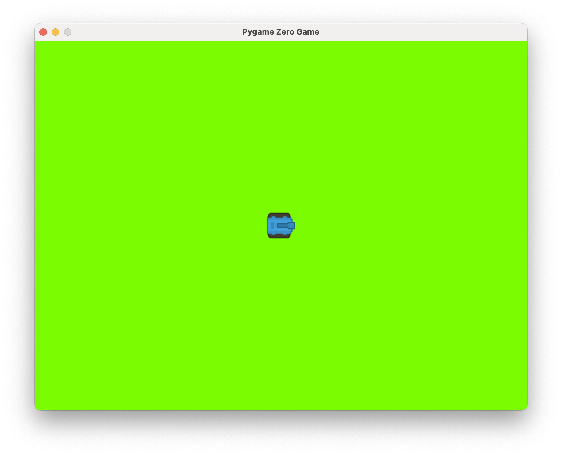
Try your program. Your screen should look like this.
-
Add the
update()function to add keyboard control to the tank.
Rotation
Actors have another attribute (just like their x and y) called angle,
which controls the direction they face.
-
Add the highlighted line.
Try your program. Your screen should look like this.
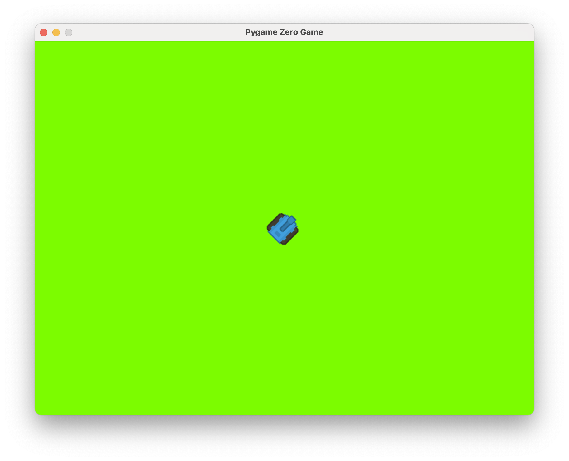
The tank rotated 45 degrees counterclockwise.
-
Change the tank's angle to some other numbers. What happens with numbers larger than 360, or smaller than zero?
-
Set the tank's starting angle to zero.
Let's change the update() function so that the tank is always facing the
direction it is going.
-
Add the highlighted line.
-
Add lines to the other three
ifstatements to make the tank face in the correct directions.Stuck? Open for a hint.
Angle
0faces right, and the angle grows counterclockwise:90is up,180is left,270is down.
If we press two keys at the same time, the tank moves diagonally. That might
be what we want for some games, but not for this one. We'll change our if
statements to if/elif, so only the first key that is pressed is noticed by
our program.
-
Keep the first
ifstatement in the code above, and change the other three toelif. -
Test that pressing more than one key only moves up, down, left, or right — not diagonally.
Adding Tiled Walls
We'll build our walls with an image tile. We'll need many Actors for each wall, so we'll collect them in a list to make them easy to work with.
Remember, we create a list using the square brackets: [ and ].
Let's create an empty list named walls that will hold wall tile Actors.
-
Add the highlighted line to your code.
-
Use a loop to make a wall with 10 wall tiles. Add the highlighted lines.
- Repeat the loop 10 times (
for i in range(10)). - Each loop, create a new Actor, and multiply the loop number by 50 for its x position.
- Add the wall tile to the list of walls (
walls.append(w)).
- Repeat the loop 10 times (
To see the wall on the screen, we need to draw it. We'll use a loop again to draw each tile of the wall.
-
Add the highlighted lines to the
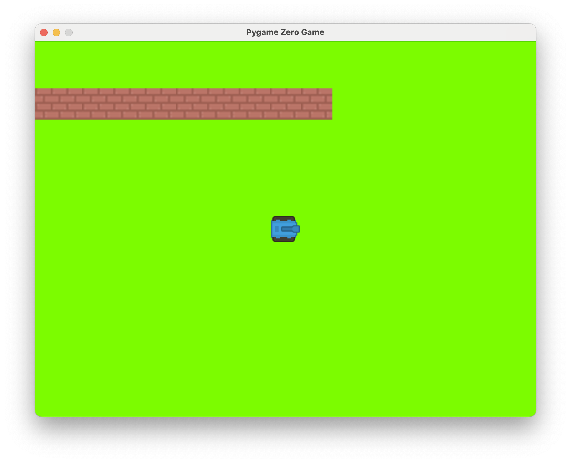
draw()function.Try your program. Your screen should look like this.
Making Walls Solid
We've drawn the wall to the screen, but the tank can still drive right through it! We need to detect if the tank is colliding with one of the wall tiles.
We've already seen the colliderect() function to check if one Actor is
touching another. Pygame Zero also has a simple function to check if an Actor
is colliding with any Actor in a list, called collidelist(). It gives us
-1 if the Actor is not touching any Actors in the list, or the position
of the first Actor in the list that it is touching.
-
Add the highlighted lines to the top of the
update()function to save the current location of the tank before moving it with the keyboard. -
Add these lines to the end of the
update()function, after the keyboard code that moves the tank. This will return the tank to where it was if it collides with any tiles in the wall.Try your program. The tank should stop at the wall.
Turn It In
- Submit your
tanks.pyfile in Google Classroom.
How It's Graded
This lab is worth up to 4 points. One score covers everything you turn in.
| Score | What it looks like |
|---|---|
| 4 — Excellent | The tank faces the direction it drives on all four keys, elif keeps it from sliding diagonally, the ten-tile wall comes from one loop, and the tank stops dead at it — position saved before the move and restored on collision. |
| 3 — Above Average | Everything works with a small slip — one direction facing the wrong way, or a wall a tile short. |
| 2 — Average | The tank drives and rotates, but the wall isn't solid — or the wall is there and the rotation isn't. |
| 1 — Below Average | The tank moves but nothing else made it in. |
| 0 — Failing | Nothing submitted, or the program doesn't run. |