Hello, Scratch
By the end of this unit you'll have written a play and a video game. Today we start smaller: a cat that talks and walks to the spots you tell it to. The cat is included at no extra charge.
Overview
Scratch is a programming language where you snap blocks together instead of typing. In this lab you'll create your Scratch account with the class link, take a tour of the editor, learn how Scratch describes where things are on the screen, and write a first program that makes a sprite speak and glide around. You'll follow along with me on the projector, so keep your screen matched to mine.
Before you start
You'll need the class sign-up link posted in Google Classroom. Have your notebook open, too; you'll write your new username in it so it can't be forgotten.
You've got it when…
- You have a Scratch account made from the class link, and your username is written in your notebook.
- Clicking the green flag makes the cat say hello, glide to the upper right, glide to the lower left, and come back to the middle.
- Your project is named Hello Scratch and shows up in My Stuff.
Collaboration & AI
Work: On your own, following along with the class. Help a neighbor find a block if they're lost, but everyone builds their own project.
AI — AIAS Level 1, No AI: This lab is about learning where the blocks live, so set AI aside this time. What the levels mean.
Make Your Account
Scratch accounts are free, but we're making yours through a class link so that I can see your projects and help you if you forget your password.
-
Click the class sign-up link posted in Google Classroom.
-
Pick a username. Use your first name and last initial, like
SteveW. If Scratch says that name is taken, add a number to the end.Warning
Your username is public. No last names, no birthdays, and nothing you wouldn't want on the projector.
-
Pick a password you can remember, and type it twice.
-
Fill in the rest of the sign-up form and click Create Your Account.
-
Start a notebook entry titled Scratch and write your new username in it. (Not the password. Never the password.)
Tour the Editor
-
Click Create at the top of the Scratch page. The editor opens with a cat already in it.
-
Find the four areas of the editor. Every Scratch project you ever make will use all four.
Area Where it is What it's for Block palette left column every block you can use, sorted by color Code area wide middle space where you snap blocks together to build a program Stage upper right where your program runs Sprite list below the stage every character in the project; click one to see its code 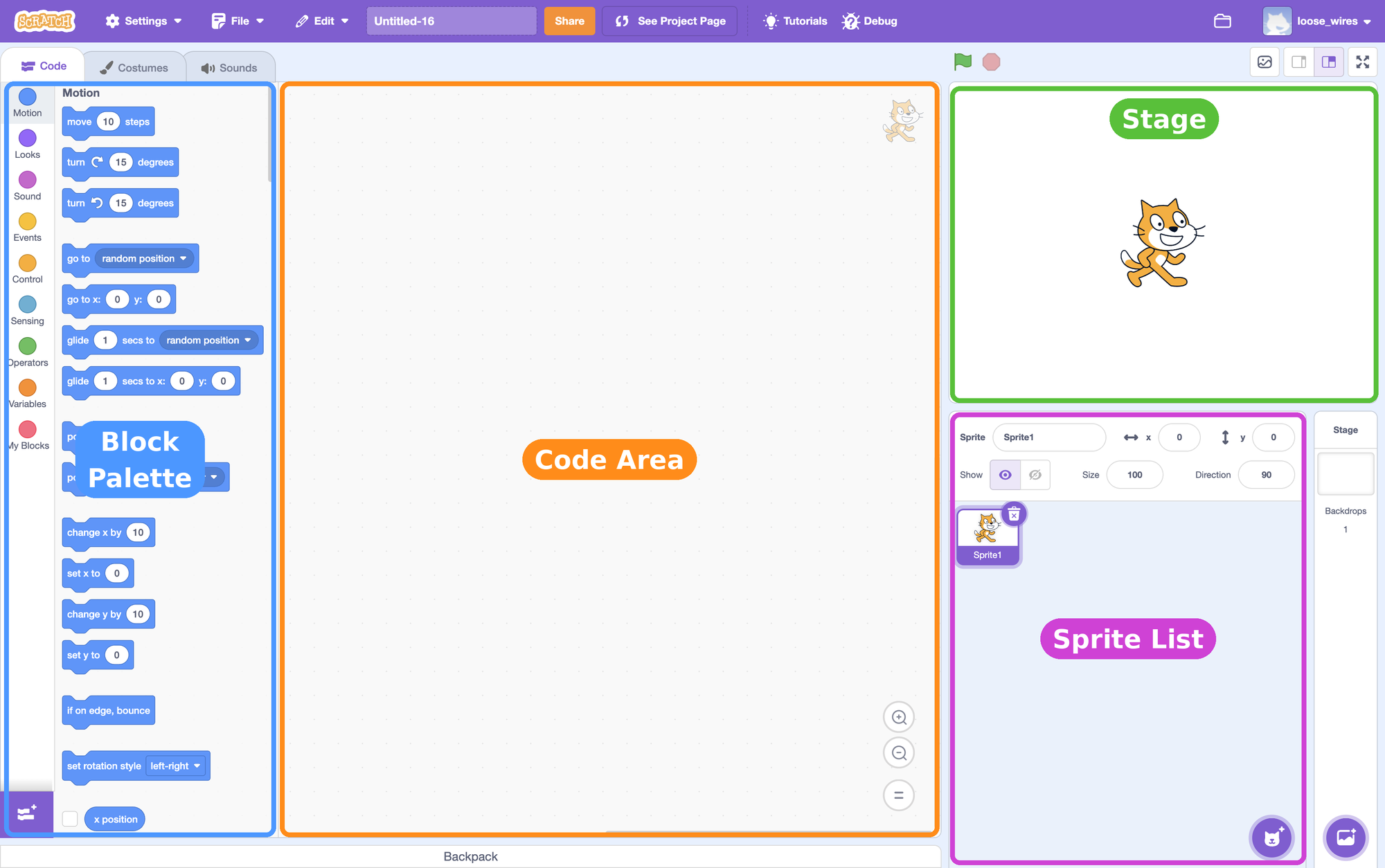
-
Click each colored category on the far left (Motion, Looks, Sound, and so on) and watch the block palette scroll. The color of a block tells you which category it came from.
Sprites
A sprite is any character or object in your project. The cat is a sprite. In the next lab we'll add a second one. The stage is the background they perform on.
-
Click the project name box at the top of the screen (it says something like Untitled-3) and rename your project Hello Scratch.
Say Hello
-
Click the Events category and drag the when green flag clicked block into the code area.
-
Click the Looks category and drag the say Hello! for 2 seconds block under the flag block until it snaps on.
-
Click inside the block's text and change
Hello!toHello, world!.Your screen should look like this.
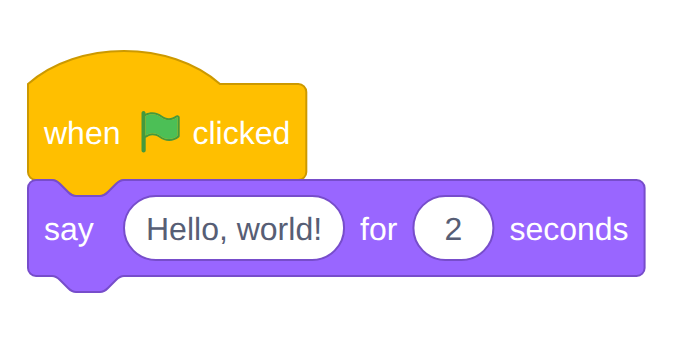
-
Click the green flag above the stage. The cat should speak for two seconds and then stop.
Why the green flag?
Blocks only run when something starts them. The event block on top (the one with the rounded hat) says when this happens, run everything snapped below me. The green flag is the standard way to start a Scratch program, and the red stop sign next to it stops everything.
Where Is the Cat?
Scratch keeps track of every sprite's position with two numbers, and you'll use them constantly, so let's get them straight now.
-
Drag the cat around the stage with your mouse. Watch the x and y boxes above the sprite list change as you move it.
Coordinates
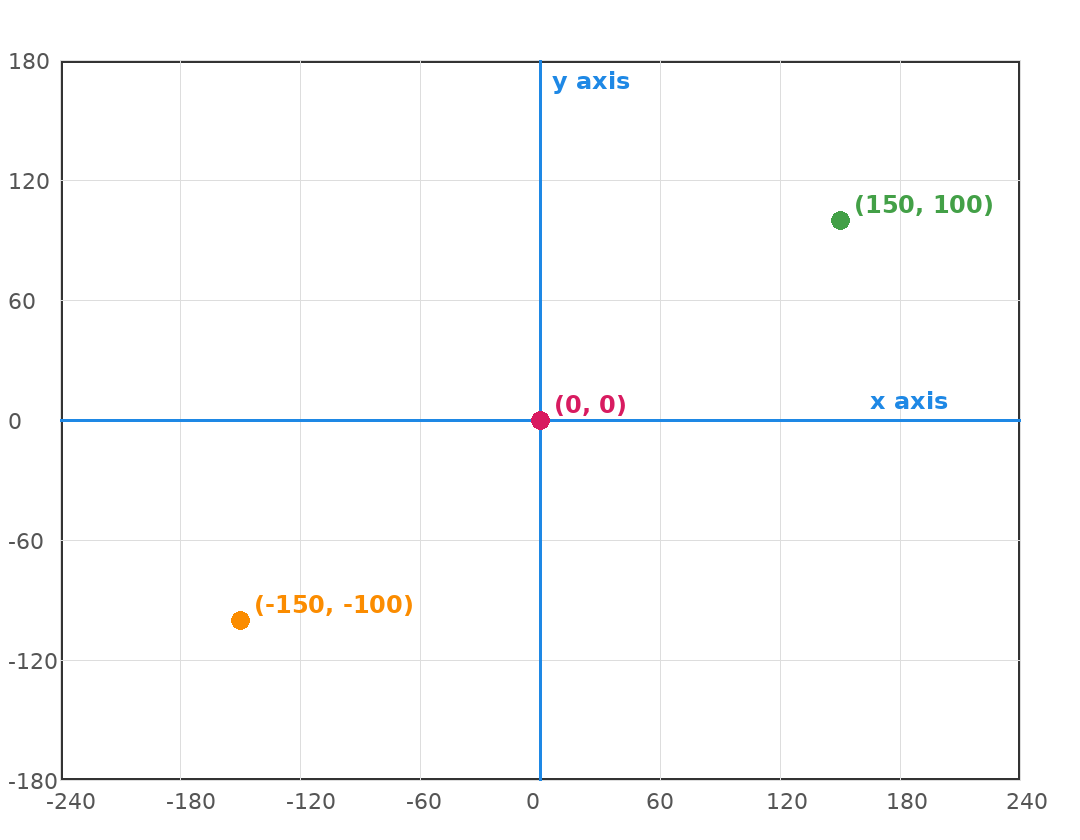
The stage is a grid. x says how far left or right a sprite is, and y says how far up or down. The middle of the stage is
x: 0, y: 0. Going right makes x bigger; going left makes it negative. Going up makes y bigger; going down makes it negative. The stage runs from-240to240across and-180to180up and down. Together, an x and a y are called coordinates. -
Drop the cat somewhere near the middle. Click Motion and drag a go to x: y: block between the flag block and the say block. Set both numbers to
0.Your screen should look like this.
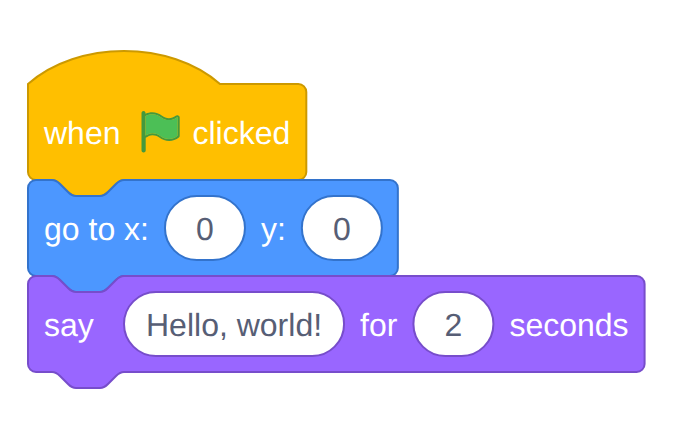
-
Drag the cat into a corner of the stage, then click the green flag. The cat should jump back to the exact center before it speaks.
Tip
The go to block in the palette always shows the cat's current position. Drag the cat where you want it first, and the block will already have the right numbers when you drag it out.
Take a Walk
-
From Motion, snap a glide 1 secs to x: y: block under the say block. Set it to
x: 150andy: 100. -
From Looks, snap another say for 2 seconds block under it and change the words to
Up and to the right. -
Add a second glide block set to
x: -150andy: -100, and another say block that saysDown and to the left. -
Add one last glide block back to
x: 0andy: 0.Your screen should look like this.
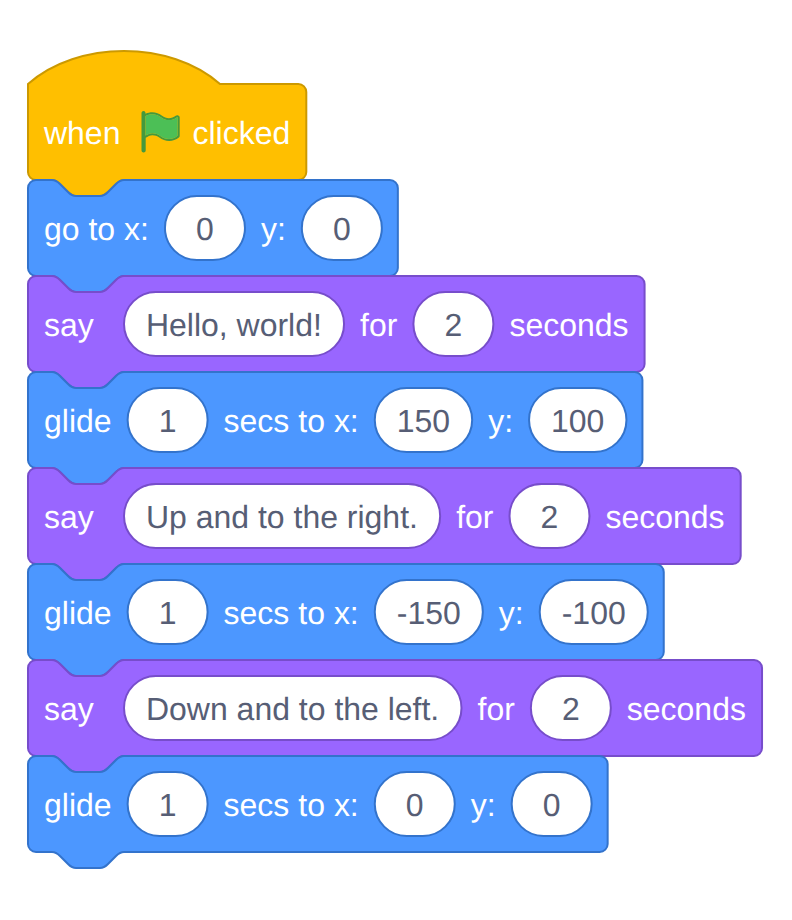
-
Click the green flag and watch the whole trip. Check it against the grid picture in step 14: the cat should visit the green dot, then the orange dot, then come home to the pink one.
Warning
If the cat glides somewhere strange, check the minus signs. A
-150and a150are on opposite sides of the stage, and the minus is easy to lose when you type over a number.
Checkpoint
Hello, a trip to two corners, and back to the middle. You just wrote a program.
Save Your Work
Scratch saves your project automatically while you're signed in, but "it should have saved" is how projects get lost. Save on purpose.
-
Click
File ▸ Save nowat the top of the editor. -
Click the folder icon in the top right corner of the page (or your username, then My Stuff). Your Hello Scratch project should be in the list.
-
In your notebook entry from step 5, write one sentence about what
x: 150, y: 100means on the stage.
Challenges
Try these on your own if you finish early.
- A longer trip. Add two more glide stops. Before you click the flag, predict where the cat will go, then check.
- Faster and slower. Change the
1in a glide block to0.2, then to3. What does that number control? - Say what you see. Click Looks and find a block that makes the cat think instead of say. Swap one in.
Turn It In
- Nothing to upload today. Your Hello Scratch project is saved in your Scratch account under My Stuff; I'll check it on your screen.
- Your Scratch notebook entry with your username and your one sentence about coordinates.
Credit: Adapted for sixth grade from Dan Schellenberg's Computer Science 20: Introduction to Scratch, used under a Creative Commons Attribution-ShareAlike 4.0 license.
How It's Graded
This lab is worth up to 4 points. One score covers everything you turn in.
| Score | What it looks like |
|---|---|
| 4 — Excellent | Your account exists and your username is in your notebook; clicking the green flag sends the cat to the center, through both corners with its lines, and back home; the project is named Hello Scratch and sits in My Stuff; and your coordinate sentence correctly says which direction each number moves the cat. |
| 3 — Above Average | The trip works with a slip or two — a stop in the wrong corner, a missing say block, or a project still named Untitled. |
| 2 — Average | The cat says hello but the glide trip is missing or mostly wrong, or the project works but isn't saved where My Stuff can find it. |
| 1 — Below Average | An account and an open editor, but no working script. |
| 0 — Failing | No account, or no project in My Stuff. |