Roulette Wheel
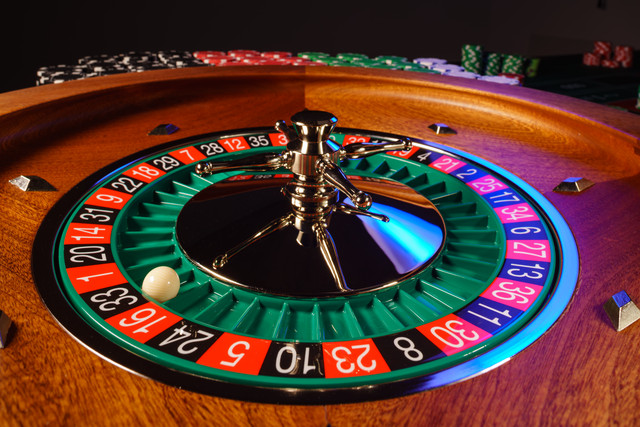
Roulette isn't a great idea in real life. If you bet on red, you're almost flipping a coin — but not quite. The casino adds a green space that makes it a little harder to win. At best, you only have a 47% chance of winning any single spin, and that's not fair!
But a roulette wheel can make a fun light show.
Overview
You'll program the ring of ten pixels on the Circuit Playground Express to act like a spinning roulette "ball" that slows down and stops on its own. Along the way you'll use a variable to track position, an infinite loop to animate it, and a timing trick to make the motion feel real.
Before you start
Connect your Circuit Playground Express and open code.py on the
CIRCUITPY drive. If you don't see the drive, ask for help before
continuing.
You've got it when…
- A single white light travels around the ring on its own.
- The light slows down as it goes.
- It comes to rest on one pixel and stays there.
Collaboration & AI
Work: On your own. Ask a neighbor for a hand if you're stuck, but the code you submit should be yours.
AI — AIAS Level 1, No AI: This lab is about learning the loop by writing it yourself, so set AI aside for the code this time. What the levels mean.
Make It Spin
First we get a single light moving around the ring. Do the Setup steps before the infinite loop.
-
Start by importing the libraries we'll need.
-
Define some colors so we can use them later.
-
Turn down the brightness.
-
Set the initial colors for the wheel. We'll start by turning off all the pixels by setting their colors to black.
-
Create a variable to keep track of where the roulette "ball" is.
The rest of this section goes inside the infinite loop.
Warning
Remember to indent all code inside the loop. Code below the infinite loop will never run!
-
Set the pixel at location
ito the color black.Need help? Open for a hint.
Look at how we set each pixel's color in step 4 above. Instead of using an actual number, we'll use the variable
i, which is the number of the current pixel in the loop. -
Add one to
i. -
The last pixel on the wheel is number 9. Check if
iis now greater than 9. If it is, set it to zero to "wrap around" the roulette wheel. -
Set the pixel at location
ito the color white. -
Use the
time.sleep()function to delay for one-tenth of a second.
Try your program. You should see a white light move around the Circuit Playground Express.
Make It Stop
Now that we have a spinning "ball" on our roulette wheel, we need to make it slow to a stop. The first step is Setup — it goes before the infinite loop.
-
Create a variable to keep track of how long we will wait before moving the "ball" to the next pixel.
-
Edit this line of code inside the infinite loop to use the
delayvariable instead of a constant number. -
Increase the delay each loop so we wait longer and longer before moving the "ball" to the next pixel. This will cause it to gradually slow down. We'll also print the delay to the Serial terminal so we can see it increasing.
Try your program. The "ball" should still spin and will now slow down as it goes around.
-
Finally, if the ball is going slow enough, we want to stop it entirely. Here's a neat trick to do this with very little code:
- At the beginning of the infinite loop, check if
delayis greater than some wait time. - If it is, use the
continuekeyword to go on to the next loop. - The rest of the code in the loop will just be ignored!
- At the beginning of the infinite loop, check if
Try your program. The "ball" should settle at a final location now.
Checkpoint
Your wheel spins, slows, and stops on its own. That's the whole machine — everything from here is polish.
Tuning
If everything is working well, we can tune our program to make it "feel" more realistic. For example, we can edit this line to make the delay increase by 10% each loop, rather than by a constant amount:
And we can start with a faster initial speed:
And we can reduce the speed where the "ball" settles to a stop:
Try changing these values until you get a result that you like.
Challenges
Please work on these challenges on your own.
-
Background colors: see if you can change the background colors of every other pixel like a real wheel (red-black-red-black, etcetera).
- In the setup, make all even numbered pixels red, and make all odd numbered pixels green.
-
In the infinite loop, instead of setting the current pixel to black, check if
iis an even number like this: -
If
iis even, make it red. Else, make it green.
-
Make it random: make the ball stop on a random pixel. Here's one way to do it:
- Import the
randomlibrary. - Use
random.randint(0, 9)to select a random pixel. - Hint: what if we start on a random pixel instead of worrying about how to stop on one?
- Import the
-
Add a button: spin the wheel again when a button is pressed.
-
Remember that we can check if a button is pressed like this:
-
If a button is pressed, reset the
delayto what it is in the setup of the program. - Notice that you might have to press and hold the button for a moment to make this work. Why?
-
Turn It In
- Submit your
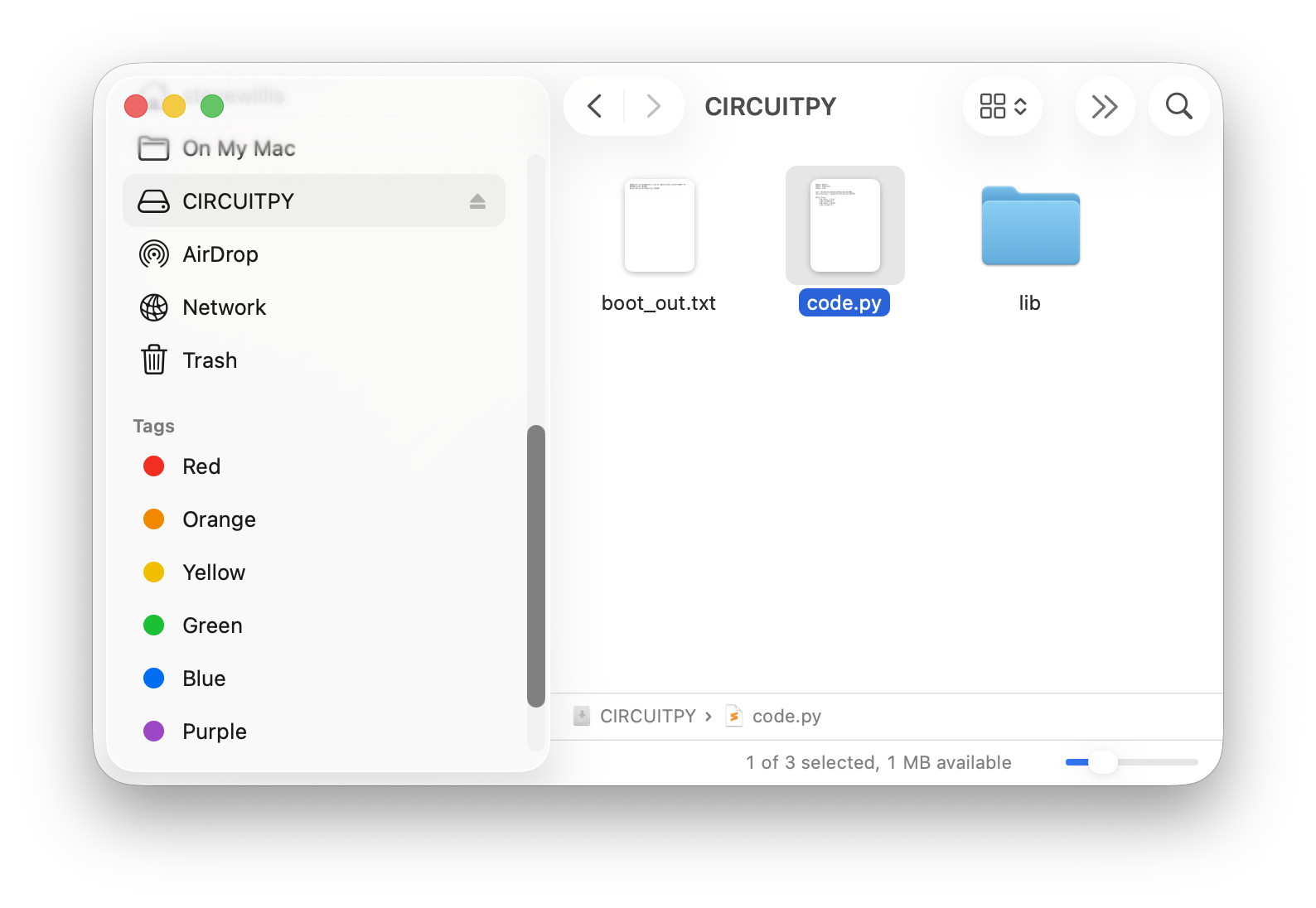
code.pyfile. You'll find it on the CIRCUITPY drive that appears when your board is connected and turned on.
How It's Graded
This lab is worth up to 4 points. One score covers everything you turn in.
| Score | What it looks like |
|---|---|
| 4 — Excellent | Your code.py makes the white ball travel the ring, slow down, and settle on one pixel — with the wrap-around check and the continue trick both doing their jobs — the delay is tuned so the stop feels like a real wheel, and at least one challenge works. |
| 3 — Above Average | The ball spins, slows, and stops, with a rough edge — it halts with a jolt because the tuning values were never touched, or a challenge was attempted but doesn't quite work. |
| 2 — Average | Half the machine — the ball spins and slows but never comes to rest, or it only circles at a constant speed. |
| 1 — Below Average | The light never makes it around the ring, or code.py doesn't run. |
| 0 — Failing | No code.py submitted. |