Actor Positioning and Platforms
Every platformer — from Super Mario Bros. on down — depends on one skill: knowing exactly where the edges of things are. In this lab you'll position Actors by their edges instead of their centers, then build platforms the alien can land on, bonk its head against, and bump into from the side.
Overview
In this lab you'll use an Actor's top, bottom, left, and right
positions for pixel-perfect placement, build platforms from wall tiles with a
list and a loop, and handle collisions separately for downward, upward, and
sideways movement — the core of any platformer.
Builds on: Multiple Worlds and Game Over Reset — gravity with speed_y, on_key_down(), and collidelist().
Before you start
Open Thonny and start a new program named platforms.py. Save it in your
pygame-zero folder, next to your images folder.
You've got it when…
- The alien drops in and lands standing on the platform — not sunk into it.
- Jumping into the upper platform from below stops the alien cleanly.
- The alien can't pass through platforms moving left or right, either.
Collaboration & AI
Work: On your own. Ask a neighbor for a hand if you're stuck, but the program you submit should be yours.
AI — AIAS Level 1, No AI: Edge positioning is the foundation for the platformer projects ahead — learn it by hand here. What the levels mean.
New Images
If you completed Getting Set Up for Pygame Zero,
both images are already in your images folder.


Actor Positioning
-
Start with this code.
platforms.pyimport pgzrun WIDTH = 800 HEIGHT = 600 player = Actor("alien") player.x = WIDTH / 2 player.y = HEIGHT def draw(): screen.fill("skyblue") player.draw() pgzrun.go()Try your program. Your screen should look like this.
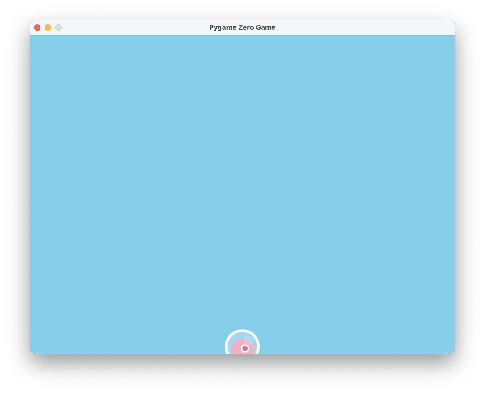
To this point, we've used x- and y-coordinates to position our Actors. That works well for many things, but sometimes we need to be more precise. The x/y coordinates refer to the center of an Actor. We can also use positions like
top,left,bottom, andright.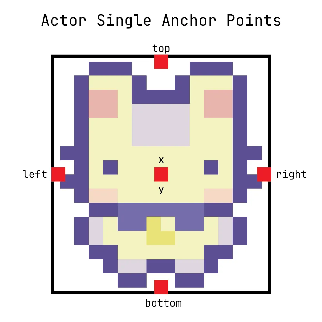
-
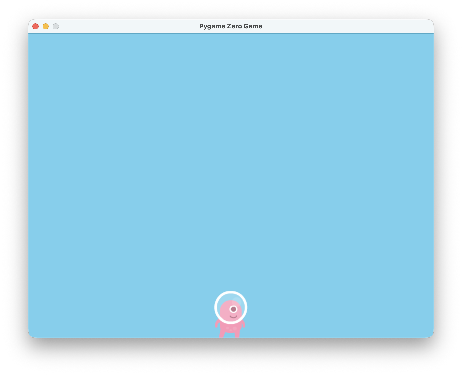
Make the highlighted update to place the bottom of the Actor, instead of the center of the Actor, at the bottom of the screen.
Try your program. Your screen should look like this.
Add Platforms
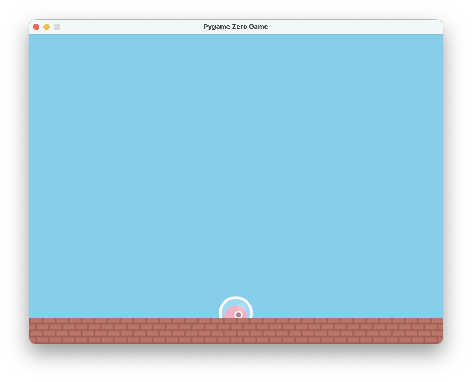
Let's create a platform across the bottom of the screen. We'll use the wall image, which is 50 pixels wide and 50 pixels tall. We'll use a list to hold all the wall pieces, and a loop to make Actors for the wall pieces so we don't have to make them one by one.
-
Add the highlighted lines.
player = Actor("alien") player.x = WIDTH / 2 player.bottom = HEIGHT platforms = [] for i in range(WIDTH // 50): w = Actor("wall") w.bottom = HEIGHT w.left = i * 50 platforms.append(w)What is
//?//is whole-number division.WIDTH // 50asks: how many 50-pixel tiles fit across the screen? For an 800-pixel screen, that's 16 — with no leftover fraction to trip uprange(). -
Add this to your
draw()function to draw all the wall pieces.Try your program. Your screen should look like this.
Adding Player Movement and Checking for Collisions
Handling Gravity and Downward Movement
-
Add the highlighted lines to your program — a
GRAVITYconstant at the top, and aspeed_yvariable on the player. -
Start the
update()function. -
Add this to
update()to get the piece of wall that the player is touching, and move your player's bottom to its top.# If the movement caused a collision, move position back collision_index = player.collidelist(platforms) if collision_index != -1: # Get the wall piece the player collided with collided = platforms[collision_index] # Check if the player collided while moving down if player.speed_y >= 0: # move player up to no collision position player.bottom = collided.top # Set the up/down speed to zero player.speed_y = 0Try your program. Your screen should look like this.
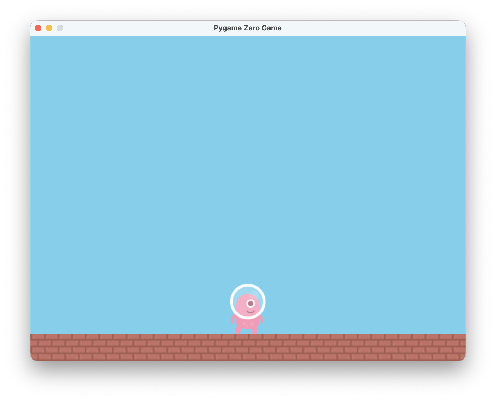
The player has been moved to the top of the platform.
-
So we can see this better, let's start our player in the air and let them drop in. Make the highlighted update.
Try your program. The player should drop in and stop on the platform.
Handling Jumping and Upward Movement
-
Add the highlighted lines to your program — a
JUMP_SPEEDconstant, and ajumpingflag on the player. -
Create the
on_key_down()function to handle the jump key. -
Add the highlighted line in the
update()function to stop jumping when the player contacts a platform. -
Add the highlighted lines in the
update()function to handle a player contacting the bottom of a platform while jumping. -
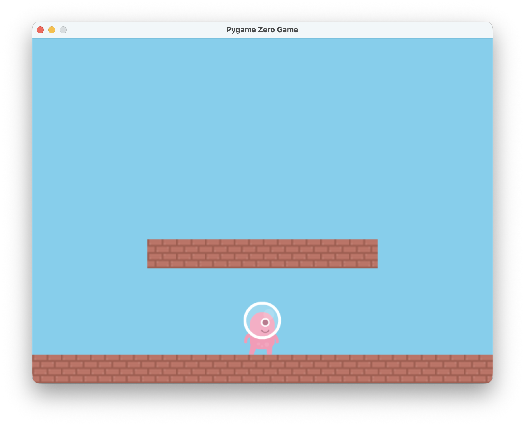
Add the highlighted lines to create an additional platform.
-
Start the player at the bottom of the screen again — the collision code will move them to the top of the lower platform automatically. Make the highlighted update.
player = Actor("alien")
player.x = WIDTH / 2
player.bottom = HEIGHT
player.jumping = False
player.speed_y = 0
Try your program. Your screen should look like this, and the player should jump when Up is pressed and stop when contacting the upper platform.
Handling Left and Right Movement
Left and right collisions with the platform are handled in the same way as up and down collisions.
-
Add the lines below to the bottom of the
update()function to handle left and right movement.# Handle player left movement if keyboard.left and player.left > 0: player.x -= 5 #player.image = "p_left" # if the movement caused a collision collision_index = player.collidelist(platforms) if collision_index != -1: # get object that player collided with collided = platforms[collision_index] # use it to calculate position where there is no collision player.left = collided.right # Handle player right movement elif keyboard.right and player.right < WIDTH: player.x += 5 #player.image = "p_right" # if the movement caused a collision collision_index = player.collidelist(platforms) if collision_index != -1: # get object that player collided with collided = platforms[collision_index] # use it to calculate position where there is no collision player.right = collided.left
Challenges
Try these on your own once everything works.
- Modify the program to make the alien jump high enough to land on the upper platform.
- Add another, higher platform to jump to.
Turn It In
- Submit your
platforms.pyfile in Google Classroom.
How It's Graded
This lab is worth up to 4 points. One score covers everything you turn in.
| Score | What it looks like |
|---|---|
| 4 — Excellent | All three collision directions are handled separately and correctly: the alien drops in and lands with its bottom exactly on the platform's top, a jump into the upper platform stops cleanly at its bottom, and sideways movement can't push through either — every fix done with edge attributes, not nudged numbers. |
| 3 — Above Average | Landing and head-bonks both work, with a slip in one direction — a corner case where the alien clips a side, or a jump flag that doesn't reset. |
| 2 — Average | The alien lands on platforms, but passes through them jumping up or walking sideways. |
| 1 — Below Average | The alien falls through everything — the platforms are scenery. |
| 0 — Failing | Nothing submitted, or the program doesn't run. |