Tilt Sensor
A green ring means you're level. A red light and an alarm mean you're not. Let's turn the board into a tilt alarm and take it to a balance beam.
Overview
We previously looked at the accelerometer to sense the tilt of the board and control a mouse. You'll use that same sensor to detect tilt: the pixels stay green while the board is level, and when it tips too far the low side turns red and an alarm sounds. Then you'll try it out on a balance beam.
Builds on: Acceleration as Input
— you'll reuse reading cp.acceleration into tilt variables.
Before you start
Connect your Circuit Playground Express and open code.py on the
CIRCUITPY drive. If you don't see the drive, ask for help before
continuing.
You've got it when…
- The pixels are green while the board is level.
- Tilting past the threshold turns the low side red and sounds the alarm.
- Leveling back out turns the alarm off.
Collaboration & AI
Work: On your own. Ask a neighbor for a hand if you're stuck, but the code you submit should be yours.
AI — AIAS Level 1, No AI: Thresholds and if…elif…else are the point of this lab, so set AI aside for the code this time. What the levels mean.
Setup
Do these steps before the infinite loop.
-
Import the libraries we'll need.
-
Define some colors.
-
Turn down the brightness of the pixels.
-
Define a threshold for how much the board can be tilted before we sound an alarm. We'll use this in the loop.
Loop
Put all the lines below inside the infinite loop.
-
Detect how far the board is tilted by reading the acceleration.
-
Fill all the pixels with the green color.
-
Check if the board is tilted too far to the left or the right. If so, change the color of the low side to red and sound an alarm. Otherwise, turn the alarm off.
-
Delay the next loop slightly.
Try your program. Your board should stay green while it's flat, and light up red with an alarm when you tilt it.
Challenges
- Whole-side warning. Update the code to make all the pixels on the left or right side of the board red when it is tilted too low instead of just one pixel.
- Balance beam. Try this on a balance board and adjust the
THRESHOLDvariable to make it challenging but fair.
Turn It In
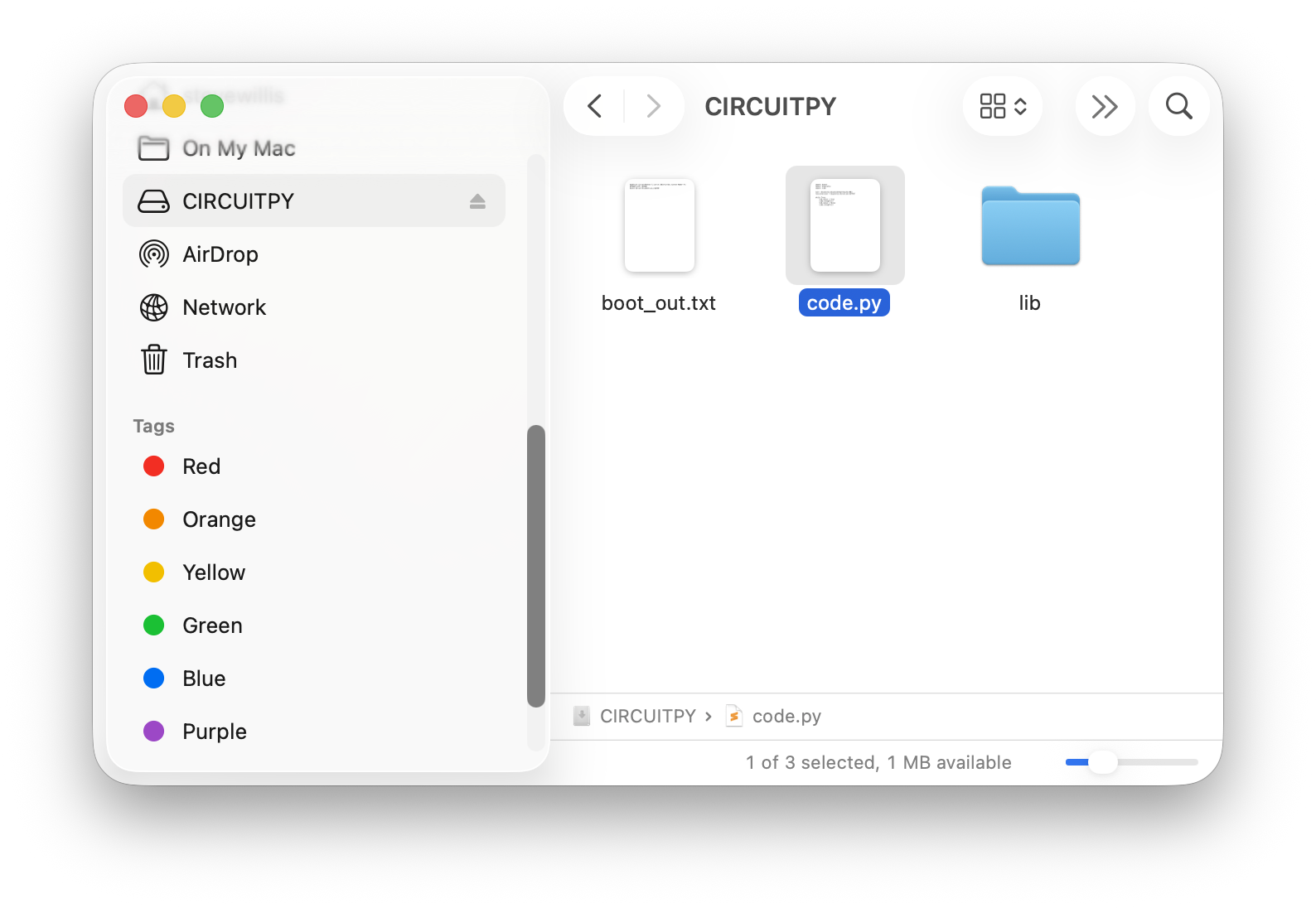
- Submit your
code.pyfile. You'll find it on the CIRCUITPY drive that appears when your board is connected and turned on.
How It's Graded
This lab is worth up to 4 points. One score covers everything you turn in.
| Score | What it looks like |
|---|---|
| 4 — Excellent | Your code.py holds a green ring while the board is level, turns the low side red and sounds the alarm past the threshold in either direction, goes quiet the moment you level out — and your THRESHOLD is a number you can defend because you tested it on the beam. |
| 3 — Above Average | Level, tilt, and alarm all work, with a slip — only one direction of tilt is detected, or the red pixel lights the high side instead of the low side. |
| 2 — Average | The lights respond to tilt but there's no alarm, or the alarm sticks on after leveling because stop_tone() never runs. |
| 1 — Below Average | The pixels stay green no matter how far you tip it, or code.py doesn't run. |
| 0 — Failing | No code.py submitted. |