Gravity, Jumping, and Bouncing
Real objects don't glide around the screen at one speed — they fall, they land, they bounce. In this lab you'll give the alien gravity, then use that same gravity in reverse to make it jump, and finally trade the hard landing for a bounce that dies down on its own.
Overview
In this lab you'll simulate gravity with a speed variable that grows every
frame, stop the alien at the ground with an if statement, wire the up arrow
to jumping, and finish with a bounce effect controlled by a single number.
Builds on: More Characters and Collisions — Actors, update(), and draw().
Before you start
Open Thonny and start a new program named gravity.py. Save it in your
pygame-zero folder, next to your images folder.
You've got it when…
- The alien falls from the top of the screen, speeding up as it goes.
- It jumps when you press Up — but only from the ground.
- With the bounce code in place, it bounces lower and lower until it settles.
Collaboration & AI
Work: On your own. Ask a neighbor for a hand if you're stuck, but the program you submit should be yours.
AI — AIAS Level 1, No AI: Gravity is one if statement and some
addition — the point is to feel how the pieces work. Set AI aside for
this one. What the levels mean.
Setting the Scene
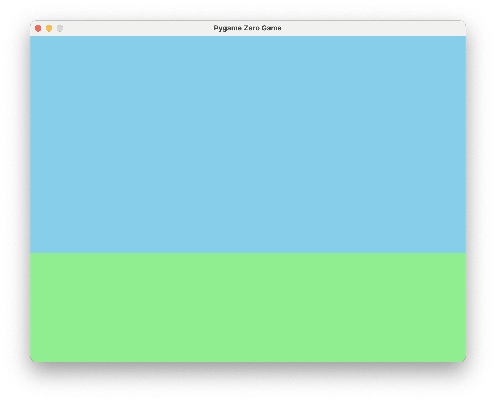
Let's start a new game file. We'll create a scene with a blue sky and green grass like this.
-
Make the screen 800 pixels wide and 600 pixels tall.
We'll also set the height of the ground with a new variable that we'll call
GROUND_Y. The ground level will be located 400 pixels from the top of the screen, which means our lawn will be 200 pixels above the bottom of the screen. -
Now we'll create the
draw()function to draw the sky and grass. Add it abovepgzrun.go().- Fill the whole screen with
skybluecolor. - Create a new Rect named
lawn, which is a rectangle for the ground. - Draw the
lawnrectangle, filling it withlightgreencolor.
def draw():
    screen.fill("skyblue")
    lawn = Rect(0, GROUND_Y, WIDTH, HEIGHT - GROUND_Y)
    screen.draw.filled_rect(lawn, "lightgreen")
Run your program. It should look like the scene above.
- Fill the whole screen with
Add an Actor
-
Above the
draw()function, let's create our Actor. We'll use the alien again for this game.- Create the Actor. We'll name it
alien. - Position the alien in the middle of the screen from left to right. We
can simply divide the
WIDTHof the screen by two to find the middle and setalien.xwith the result. - Position the alien at the top of the screen by setting
alien.yto zero.
- Create the Actor. We'll name it
-
We need to draw the alien to the screen to see it. Add the highlighted line to the
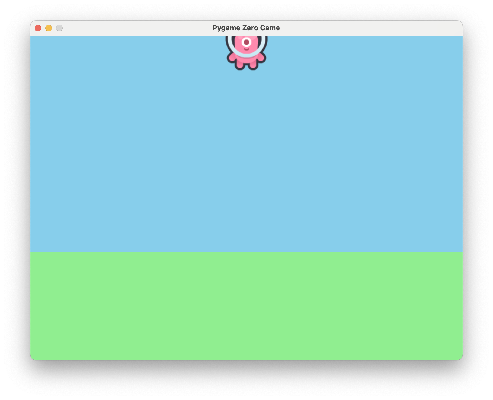
draw()function.def draw(): screen.fill("skyblue") lawn = Rect(0, GROUND_Y, WIDTH, HEIGHT - GROUND_Y) screen.draw.filled_rect(lawn, "lightgreen") alien.draw()Try your program. Your screen should look like this.
Adding Gravity
In real life:
- When something falls, it starts slow.
- As it falls, gravity keeps pulling, so it speeds up.
To make our video game "feel" realistic, we want to simulate the effects of gravity.
-
Add the highlighted line to create a new variable named
GRAVITY. Set it to 1 for now. -
Add the highlighted line to create a new variable on the alien to control its speed in the up/down direction.
-
Create the
update()function.- Each frame of the game, we'll add
GRAVITYto the alien's downward speed. Remember, on the y-axis, down is a positive number and up is a negative number. - We'll then change the alien's y-position based on the new downward speed.
def update():
    # add gravity to the alien's up/down speed
    alien.speed_y = alien.speed_y + GRAVITY

    # apply the total up/down speed to the alien's position
    alien.y += alien.speed_y
Try your program. The alien should fall from the top of the screen.
- Each frame of the game, we'll add
Tip
Try setting some different values for GRAVITY. What happens if you set
it to 0.1, or 2?
Stopping at the Ground
-
The alien falls off the bottom of the screen. We need to write some code to stop at the ground. Add the highlighted lines.
- Use an
ifstatement to check if the alien is at or below the ground level. - If so, set the alien's up/down speed to zero, and set its position at the ground level.
def update():
    # add gravity to the alien's up/down speed
    alien.speed_y = alien.speed_y + GRAVITY

    # apply the total up/down speed to the alien's position
    alien.y += alien.speed_y

    # stop at the ground
    if alien.y >= GROUND_Y:
        alien.speed_y = 0
        alien.y = GROUND_Y
Warning
Be careful to get these lines in the correct order — the ground check comes after the speed is applied to the position.
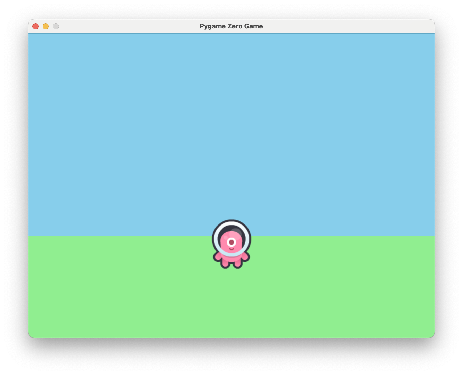
Try your program. The alien should fall to the ground and stop there.
- Use an
Jumping
Once we have gravity working, we can use it to make characters jump. This is a fun effect. To jump, we simply reverse gravity.
-
Add the highlighted line to create a new variable named
JUMP_SPEEDwhich will control how powerfully the alien jumps.Notice that
JUMP_SPEEDis a negative number, since we're reversing the downward effects of gravity. -
Add the highlighted lines to
update().- If the up arrow is pressed on the keyboard, add the (negative) jump speed to the up/down speed of the alien.
- This will remove some of the downward effect of the (positive) gravity on the line before it.
def update():
    # add gravity to the alien's up/down speed
    alien.speed_y = alien.speed_y + GRAVITY

    # add jump speed to the alien's up/down speed
    if keyboard.up:
        alien.speed_y = alien.speed_y + JUMP_SPEED

    # apply the total up/down speed to the alien's position
    alien.y += alien.speed_y

    # stop at the ground
    if alien.y >= GROUND_Y:
        alien.speed_y = 0
        alien.y = GROUND_Y
Warning
Be careful that the lines are in the order shown — jump speed is added before the position updates.
Try your program. The alien should jump when you press Up.
Preventing the Double-Jump
You might notice that if you hold Up, or press it while the alien is already jumping, the alien will jump again in midair. That might be what you want for your game! If not, here's how to limit jumping to only happen when the alien is on the ground.
-
Add the extra condition highlighted below to ignore the up arrow key if the alien is not on (or below) the ground.
def update(): # add gravity to the alien's up/down speed alien.speed_y = alien.speed_y + GRAVITY # add jump speed to the alien's up/down speed if keyboard.up and alien.y >= GROUND_Y: alien.speed_y = alien.speed_y + JUMP_SPEED # apply the total up/down speed to the alien's position alien.y += alien.speed_y # stop at the ground if alien.y >= GROUND_Y: alien.speed_y = 0 alien.y = GROUND_Y -
Set
JUMP_SPEEDto-15. Experiment with different values for this!
Adding Bounce
Instead of stopping dead at the ground, let's add a bounce effect. Here's how it works:
- Gravity increases downward speed every frame.
- When the alien hits the ground, we flip the direction of motion, and we reduce the speed so it doesn't bounce forever.
- Each bounce is smaller until it settles.
-
Add the highlighted line to create a new variable to control how bouncy the effect should be.
-
Replace this code in the
update()function:…with this code:
    # bounce on the ground
    if alien.y >= GROUND_Y:
        alien.y = GROUND_Y

        # only bounce if we're moving downward
        if alien.speed_y > 0:
            alien.speed_y = -alien.speed_y * BOUNCE_FACTOR

            # optional: stop tiny jittering bounces
            if abs(alien.speed_y) < 1:
                alien.speed_y = 0
Try your program. Try experimenting with different values for
BOUNCE_FACTORbetween 0 and 1.
Turn It In
- Submit your
gravity.pyfile in Google Classroom.
How It's Graded
This lab is worth up to 4 points. One score covers everything you turn in.
| Score | What it looks like |
|---|---|
| 4 — Excellent | All three behaviors work: the alien falls and speeds up, jumps on Up but only from the ground, and bounces lower and lower until it settles. The update() lines are in the order the lab warns about — jump added before the position updates, ground check last. |
| 3 — Above Average | Gravity, jumping, and bouncing all work, with one slip — a midair double-jump still possible, or a bounce that jitters instead of settling. |
| 2 — Average | The alien falls and stops at the ground, but jumping or bouncing is missing or broken. |
| 1 — Below Average | The alien falls off the bottom of the screen, or only the scene is drawn. |
| 0 — Failing | Nothing submitted, or the program doesn't run. |