Projectiles with Lists and Custom Functions
Most games eventually throw something: arrows, fireballs, banana peels. Ours throws hearts, because our alien is a lover, not a fighter. To pull it off you need two new tools — a list to keep track of every heart on the screen, and your first custom function to launch them.
Overview
In this lab you'll store a crowd of Actors in a list, write your own function to create new projectiles, move and draw them with loops, clean up the ones that leave the screen, and add a cooldown so the space bar doesn't flood the screen with hearts.
Builds on: Random Numbers, Mouse Clicks, and Keeping Score — Actors, update(), and keyboard input.
Before you start
Open Thonny and start a new program named hearts.py. Save it in your
pygame-zero folder, next to your images folder.
You've got it when…
- Pressing Space throws hearts that fly off the right side of the screen.
- Hearts that leave the screen are removed from the list.
- The cooldown limits how rapidly hearts can be thrown.
Collaboration & AI
Work: On your own. Ask a neighbor for a hand if you're stuck, but the program you submit should be yours.
AI — AIAS Level 1, No AI: Lists and custom functions are the point of this lab — write them yourself. What the levels mean.
Setting the Scene
-
Let's make a simple game.
- Start a new Python file with the bookends.
- Make the screen 800 pixels wide and 600 pixels tall.
- Create an Actor for our alien friend. We'll call this one
player. - Place the player near the left edge of the screen and centered vertically.
- Leave the
update()function empty. We use thepasskeyword, which tells Python to just do nothing but keeps our code valid. - Fill the screen with a color and draw the player on every frame.
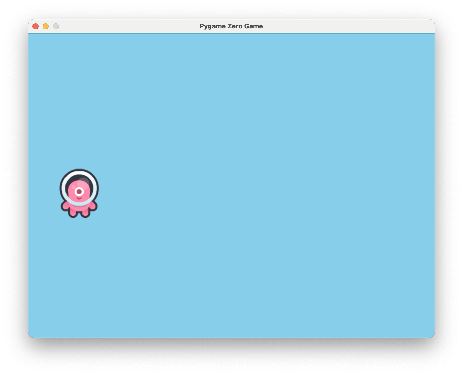
hearts.pyimport pgzrun WIDTH = 800 HEIGHT = 600 player = Actor("alien") player.x = 100 player.y = HEIGHT / 2 def update(): pass def draw(): screen.fill("skyblue") player.draw() pgzrun.go()Try your program. Your screen should look like this.
New Images
This lab throws hearts, so it needs one. If you completed
Getting Set Up for Pygame Zero, it is
already in your images folder.

Introducing a List
When we start throwing/shooting/flinging projectiles, we must create Actors for each one. We need a way to collect them all and keep track of them while they are on the screen.
Python allows us to collect items in a list. We create a list using the
square brackets: [ and ].
Let's create an empty list named hearts that will hold hearts that our
player throws.
-
Add the highlighted line to your code.
A Custom Function
We'll make a function to take care of creating new hearts and adding them to the list when the player presses the space bar.
This function isn't required by Pygame Zero. We're making it for ourselves, to make our code simpler and easier to use.
-
Create a new function called
throw_heart()aboveupdate(). When it is called from ourupdate()function, it will:- Create a new Actor for a heart.
- Set that Actor's position to be near the player Actor.
- Add the heart to the list of hearts with the
append()function.
Throwing and Updating the Projectiles
Now we'll fill in our update() function to throw a new heart when the space
key is pressed.
-
Delete the word
passfrom theupdate()function. -
Add this code to the
update()function to call ourthrow_heart()function when Space is pressed. -
Create a loop inside the
update()function to move all of the heart Actors a little each frame, one at a time.Why
.copy()?We loop over a copy of the list to avoid a particular problem with removing items from a list while looping over it — which we'll need to do later in this assignment.
-
Create a loop inside the
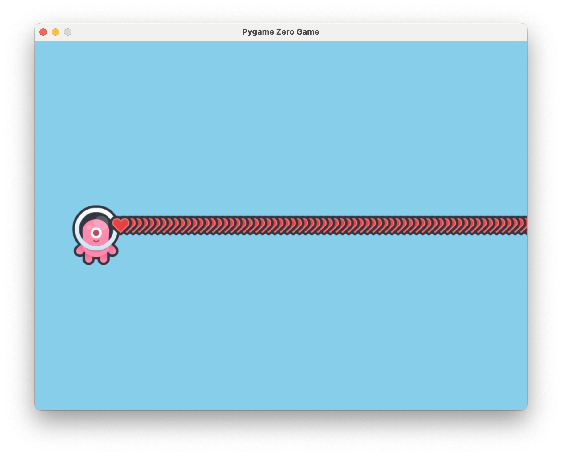
draw()function to draw each heart to the screen. Add the highlighted lines.Try your program and press Space. Your screen should look like this.
Cleaning Up
What happens to all those heart Actors when they go off the edge of the screen? They are still taking up computer memory. If we don't delete them, they will eventually use too much memory, and our program will run poorly or crash.
-
Add the highlighted lines to the
forloop in theupdate()function to remove hearts from theheartslist that are no longer on the screen.for h in hearts.copy(): h.x = h.x + 10 if h.x < 0 or h.x > WIDTH or h.y < 0 or h.y > HEIGHT: hearts.remove(h)Warning
Make sure the highlighted lines are indented to be inside the
forloop!
Cooldown
When the space bar is pressed, too many hearts are being thrown at once. We'll add a cooldown — a period of time to wait between throwing hearts.
-
Add the highlighted line to create a new variable on the player's Actor called
cooldownand set it to zero. -
Add the highlighted lines to the top of the
update()function. This will count down the cooldown time every frame until it reaches zero. -
Change the highlighted parts below to wait for the cooldown countdown to reach zero before another heart can be thrown.
Changing the
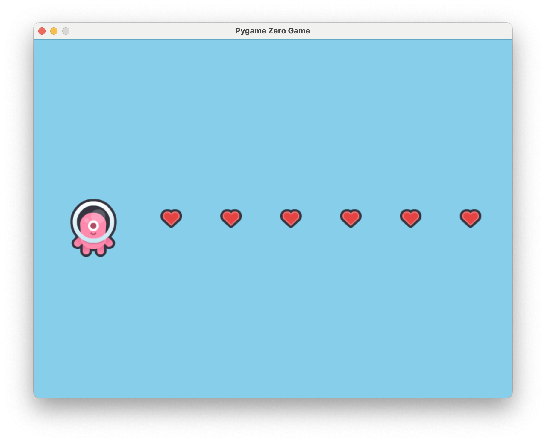
player.cooldown = 10part to another number lets you control how rapidly hearts can be thrown.Try your program and press Space. Your screen should look like this.
Turn It In
- Submit your
hearts.pyfile in Google Classroom.
How It's Graded
This lab is worth up to 4 points. One score covers everything you turn in.
| Score | What it looks like |
|---|---|
| 4 — Excellent | Space throws hearts created by your throw_heart() function, off-screen hearts are removed from the list so the game never hoards memory, and the cooldown spaces the throws — with the cleanup check indented inside the loop, where it belongs. |
| 3 — Above Average | Throwing, cleanup, and cooldown all work, with a minor slip — a cooldown so short it barely matters, or a heart that starts behind the player. |
| 2 — Average | Hearts throw and fly, but they are never removed, or there's no cooldown and the screen floods. |
| 1 — Below Average | No working throw — the list or the function isn't wired up. |
| 0 — Failing | Nothing submitted, or the program doesn't run. |