Acceleration as Input
Last time your board was a keyboard. This time it's a mouse — and instead of pressing buttons to move the pointer, you'll steer it by tilting the board.
Overview
The board has a sensor called an accelerometer. An accelerometer is a small device that can tell how fast something is speeding up, slowing down, or changing direction, like the sensor that makes a phone screen rotate when you turn it. You'll build a device that acts like a mouse for the computer it is connected to: the buttons will click, and the tilt of the board will move the pointer.
Builds on: Making an Input Device — you'll reuse the USB-HID setup and the wait-for-release button pattern.
Before you start
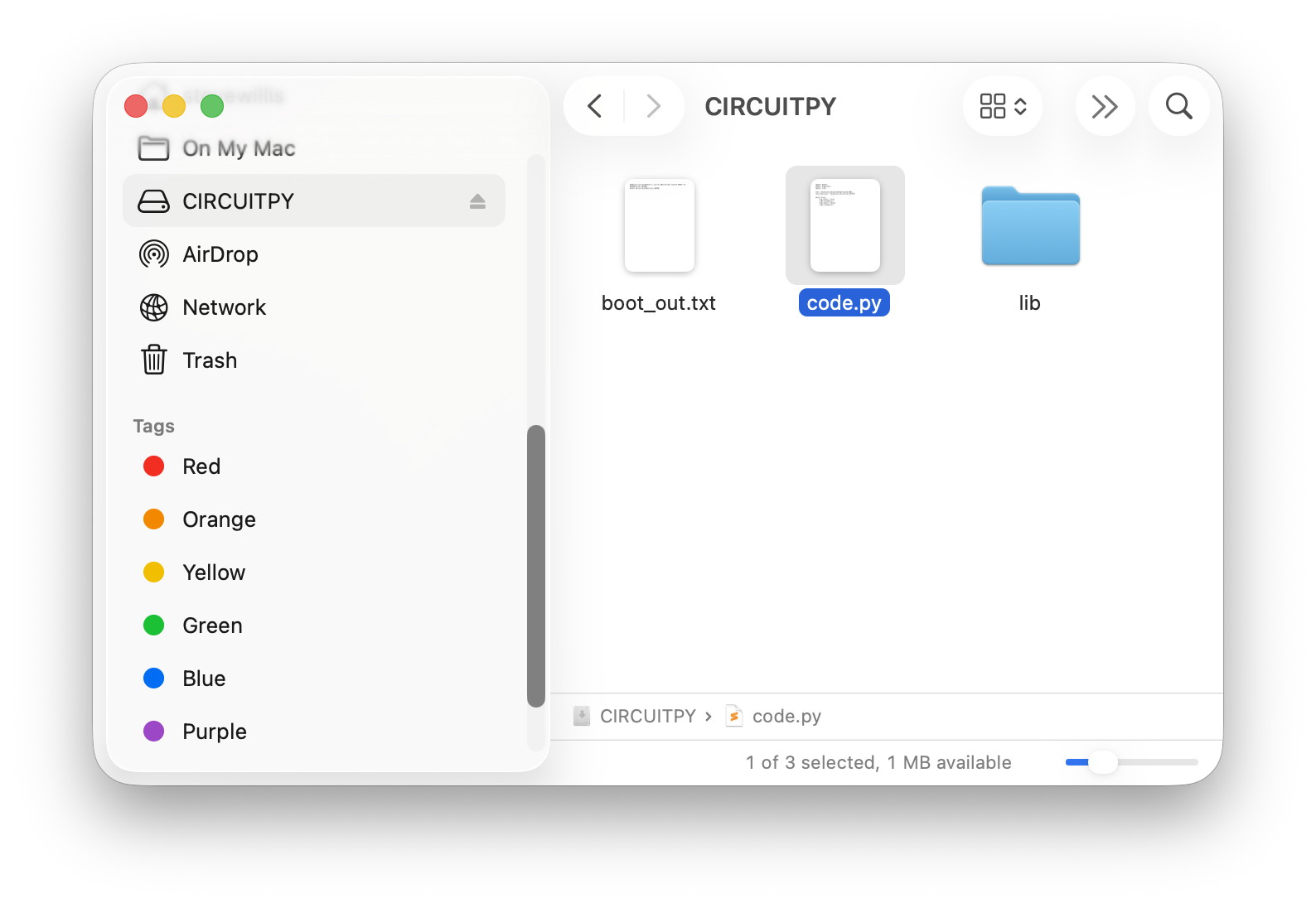
Connect your Circuit Playground Express and open code.py on the
CIRCUITPY drive. If you don't see the drive, ask for help before
continuing.
You've got it when…
- Button A clicks like the left mouse button and button B clicks like the right.
- Tilting the board moves the mouse pointer.
- The pointer speed feels right for a game you chose.
Collaboration & AI
Work: On your own. Ask a neighbor for a hand if you're stuck, but the code you submit should be yours.
AI — AIAS Level 1, No AI: Reading a sensor and mapping it to motion is the skill here, so set AI aside for the code this time. What the levels mean.
Acting as a Mouse
Do these steps before the infinite loop.
-
Import the libraries we'll need.
-
Create a Mouse object.
Put all the lines below inside the infinite loop.
-
Create an if statement to check if the A button is pressed. We'll make it act like the left mouse button.
-
Repeat to use button B as the right mouse button.
-
Detect how far the board is tilted by reading the acceleration.
-
Decide how much the mouse should move based on the tilt. For this example:
- We multiply the amount of tilt by 2. You could use a larger number if you want the mouse to be more sensitive, or a smaller number if it is moving too fast.
- We set the X-axis to a negative number. You could make it positive if you want to reverse the direction of the X axis (often called "invert look" in video games).
Try your program. Tilt the board and watch the pointer follow.
Tasks
- Find a game to play that uses the mouse for control. 3D games are often good choices for this.
- Reprogram the A and B buttons to do something useful for the game you chose.
Turn It In
- Submit your
code.pyfile. You'll find it on the CIRCUITPY drive that appears when your board is connected and turned on.
How It's Graded
This lab is worth up to 4 points. One score covers everything you turn in.
| Score | What it looks like |
|---|---|
| 4 — Excellent | Your code.py clicks left with button A and right with button B, tilting the board steers the pointer, and the multiplier is tuned so the pointer speed feels right for the game you chose — not a twitch, not a crawl. |
| 3 — Above Average | Clicks and tilt both work, with a rough edge — the pointer is too twitchy or too sluggish because the multiplier was never adjusted, or the buttons are swapped. |
| 2 — Average | The buttons click but tilt doesn't move the pointer, or the pointer moves but neither button clicks. |
| 1 — Below Average | The board never acts as a mouse, or code.py doesn't run. |
| 0 — Failing | No code.py submitted. |